
To fix keyboard delay in Windows 11: open Settings → Accessibility → Keyboard and turn off Sticky Keys and Filter Keys. Then go to Control Panel → Keyboard and shorten the Repeat Delay and increase the Repeat Rate. Also check for driver issues in Device Manager and disable unnecessary background apps.
You’re typing and the letters show up a beat late. Or they don’t show up at all, then suddenly flood in all at once. It feels minor until it isn’t — until you’re mid-sentence in a document or deep in a coding session and every keystroke becomes a small act of frustration.
Here’s the thing: this is one of those problems where the fix is almost always simple, but only once you know which setting is actually the culprit. Most guides throw ten solutions at you without explaining why. You end up toggling things at random, restarting, hoping.
That’s not what this is.
What follows is a direct, ordered walkthrough of every real cause of keyboard input lag in Windows 11 — starting with the ones that fix it in under a minute, moving to the deeper stuff only if you need it. By the end, your keyboard will either be working, or you’ll know exactly why it isn’t.
The fix is almost always in a setting, not the hardware.
Table of Contents
Why Your Keyboard Feels Delayed in Windows 11
Before jumping to fixes, it helps to know what you’re actually dealing with. Keyboard delay in Windows 11 usually falls into one of four categories: accessibility settings that are silently active, misconfigured repeat rate settings, driver issues, or background processes eating up CPU and causing input lag. Each one feels identical from where you’re sitting — but they need different fixes.
Knowing which category you’re in saves you from spending twenty minutes on the wrong solution.
💡 Key Insight: Filter Keys is the single most common hidden cause of keyboard lag in Windows 11. It’s designed to ignore brief or repeated keystrokes — and it can activate without you ever turning it on manually.
Step 1: Check Accessibility Settings First
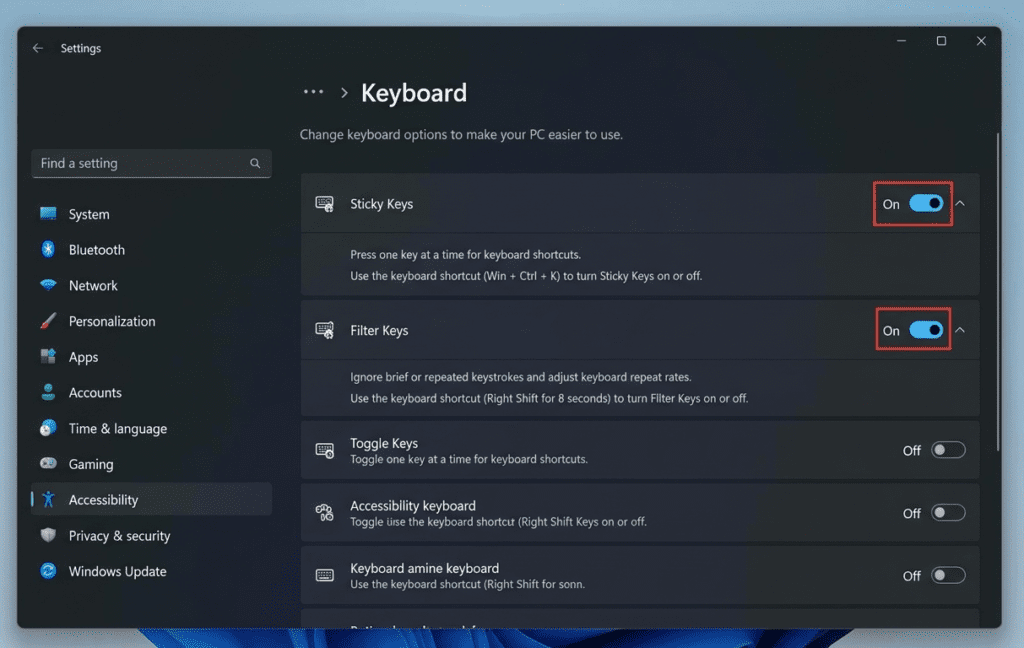
This is the fix that works for the majority of people — and it takes about thirty seconds.
Windows 11 has a feature called Filter Keys, built into the Accessibility settings, that intentionally slows down keyboard response. It’s designed for users who accidentally press keys multiple times. The problem: it can get switched on accidentally, especially if you’ve ever held down the right Shift key for eight seconds (that’s the keyboard shortcut to enable it).
Here’s how to check and disable it:
- Open Settings (Windows key + I)
- Go to Accessibility in the left sidebar
- Click Keyboard
- Find Filter Keys — if the toggle is on, turn it off
- Also check Sticky Keys and Toggle Keys — disable any that are active
After disabling Filter Keys, test your keyboard immediately. If that was the cause, you’ll feel the difference the second you start typing.
⚠️ Important: Even if you didn’t turn Filter Keys on yourself, check it anyway. Windows updates have been known to reset certain accessibility settings.
Step 2: Adjust Keyboard Repeat Delay and Repeat Rate
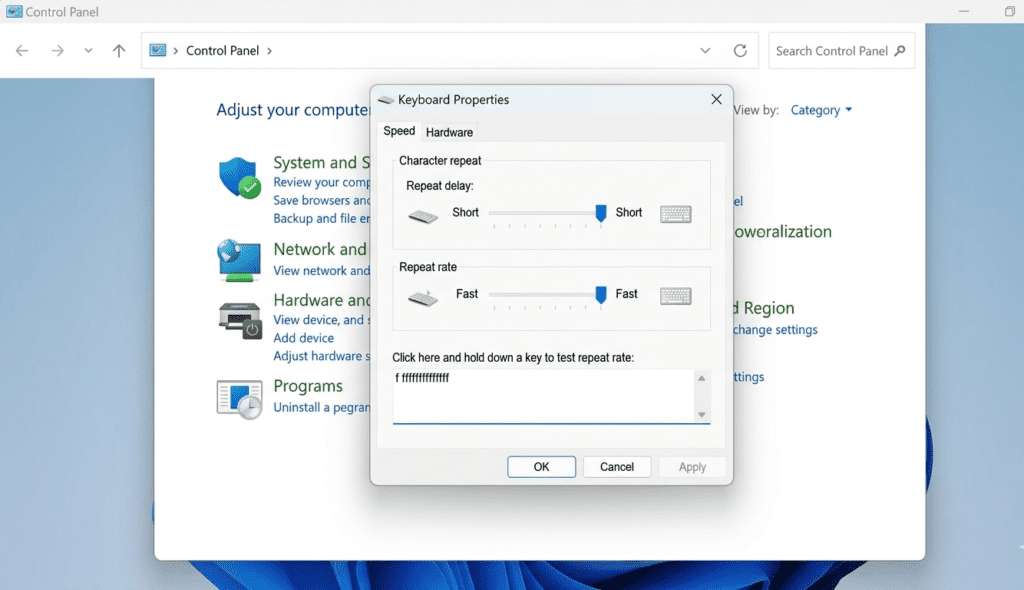
This is the setting that directly controls how your keyboard feels when you hold down a key.
Repeat Delay is the pause before a held key starts repeating. Repeat Rate is how fast it repeats once it starts. If the delay is set too long, every keystroke feels sluggish. If the rate is too slow, holding a key feels like typing through molasses.
Windows 11 hides this in the old Control Panel — not Settings.
Here’s how to adjust it:
- Press Windows key + R, type
control, press Enter - Click Hardware and Sound, then Keyboard (or search “Keyboard” in Control Panel)
- Go to the Speed tab
- Under Repeat Delay, drag the slider toward Short
- Under Repeat Rate, drag toward Fast
- Click the test box and hold a key to feel the difference
- Click Apply, then OK
Start by moving Repeat Delay to about three-quarters of the way toward Short. That’s the sweet spot for most users — responsive without becoming twitchy.
Step 3: Update or Reinstall Your Keyboard Driver
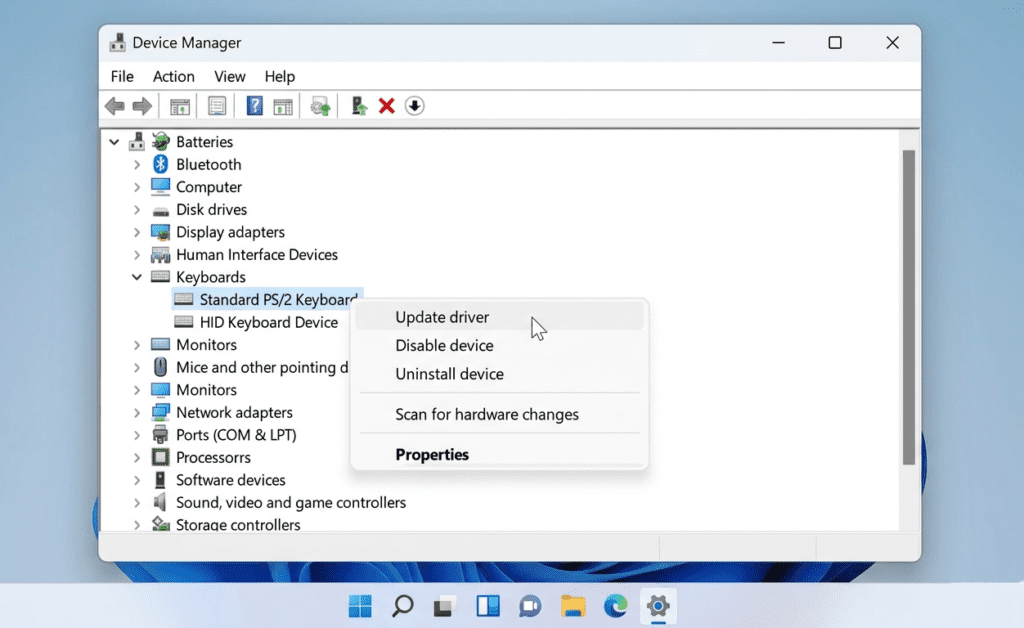
If the first two steps didn’t solve it, the driver is worth checking. An outdated or corrupted keyboard driver is a less common but very real cause of input delay — especially if the lag started after a Windows update.
How to update your keyboard driver:
- Right-click the Start button and select Device Manager
- Expand the Keyboards section
- Right-click your keyboard (it may show as “HID Keyboard Device” or your brand name)
- Select Update driver
- Choose Search automatically for drivers
- If Windows finds an update, install it and restart
If updating doesn’t help, try Uninstall device instead, then restart your PC. Windows will automatically reinstall the driver fresh on reboot.
💡 Pro Tip: If you’re on a laptop, check your manufacturer’s support site directly. Dell, HP, Lenovo, and ASUS all publish keyboard-specific drivers that can outperform the generic Windows versions.
Step 4: Disable Background Apps Causing CPU Lag
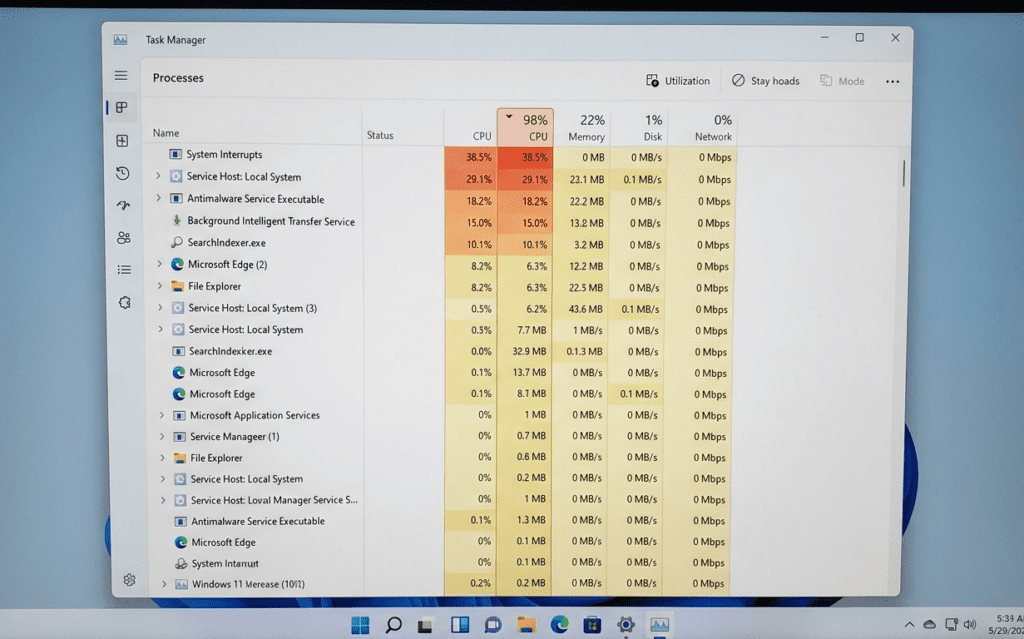
Here’s something most keyboard delay guides don’t mention: the delay isn’t always in the keyboard. Sometimes the system is so busy processing background tasks that keyboard inputs get queued and delivered late. It looks and feels like a keyboard problem, but it’s actually a CPU problem.
How to check:
- Press Ctrl + Shift + Esc to open Task Manager
- Click the CPU column to sort by usage
- Look for anything using more than 10–15% CPU when you’re not actively using it
- Right-click suspicious processes and choose End Task — start with non-essential apps
Common culprits include antivirus scans, Windows Update running in the background, browser extensions with excessive resource use, and third-party software that runs at startup.
For a permanent fix on startup apps: go to Settings → Apps → Startup and disable anything you don’t need running at boot.
Step 5: Check USB Port and Connection (for External Keyboards)
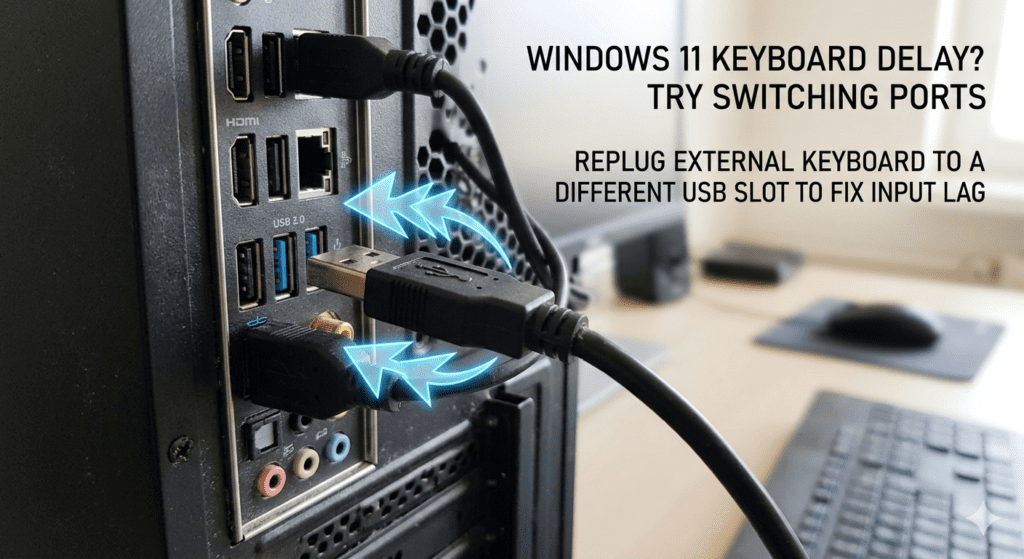
This one applies only if you’re using a wired or wireless external keyboard.
A faulty USB port, an overloaded USB hub, or a weak wireless receiver signal can all produce input lag that’s indistinguishable from a software problem. You can chase settings for an hour when the real answer is just a different port.
What to try:
- Unplug your keyboard and plug it directly into a USB port on the back of your PC (these connect closer to the motherboard and are more stable)
- Avoid USB hubs when troubleshooting — they add latency
- For wireless keyboards, move the USB receiver closer to the keyboard or try a different USB port
- Try a different USB cable if you’re using a wired keyboard
According to Microsoft’s support documentation, USB-related connection issues are among the most reported causes of keyboard input problems on Windows devices.
Comparison Table: Common Causes and Fixes
| Cause | Symptom | Fix | Best For |
|---|---|---|---|
| Filter Keys enabled | All keystrokes feel slow or get ignored | Accessibility → Keyboard → Disable Filter Keys | Everyone — check this first |
| Slow Repeat Delay/Rate | Holding a key feels laggy | Control Panel → Keyboard → Adjust sliders | Everyday users and writers |
| Outdated driver | Lag started after a Windows update | Device Manager → Update/Reinstall driver | Users who recently updated Windows |
| High CPU background usage | Intermittent lag, not consistent | Task Manager → End high-CPU tasks | Users running many background apps |
| Bad USB port or connection | External keyboard only, lag feels random | Switch USB ports, go direct to PC | External/wireless keyboard users |
What If None of These Work?
Honestly? It happens — and it’s worth saying plainly rather than pretending every fix works for everyone.
If you’ve gone through all five steps and the delay persists, there are a few remaining possibilities:
- Hardware failure: If the keyboard is old or has been physically damaged, the internal circuitry may be degrading. Test it on another computer.
- Malware or a problematic background application: Some malicious software intercepts keystrokes, which can cause apparent delays. Run a scan with Windows Defender or Malwarebytes.
- A deeper Windows system file issue: Run
sfc /scannowin an elevated Command Prompt (Run as Administrator). This scans for and repairs corrupted system files that could affect input handling.
⚠️ Important: If the problem started immediately after installing new software — including drivers for gaming peripherals — that software may be intercepting keyboard input. Uninstall it and test.
The edge case worth knowing about: some gaming keyboards come with companion software (Corsair iCUE, Logitech G HUB, Razer Synapse) that occasionally introduces input processing delay. Temporarily close the software to see if it’s the culprit.
The One Setting Most People Miss
Here’s an observation that doesn’t show up in most guides: Windows 11’s default accessibility shortcuts are too easy to trigger by accident.
Holding Right Shift for eight seconds activates Filter Keys. Pressing Shift five times activates Sticky Keys. These are legitimate accessibility features — but the confirmation dialog is easy to dismiss without reading, and most people have no idea they’ve changed anything.
If your keyboard delay seems to appear and disappear without explanation, this is almost certainly what’s happening. The fix is not just disabling the feature — it’s also disabling the keyboard shortcut that enables it.
To stop Filter Keys from turning on accidentally:
- Go to Settings → Accessibility → Keyboard → Filter Keys
- Even with Filter Keys off, click into its settings
- Uncheck “Allow the shortcut key to start Filter Keys”
This alone has fixed the “it keeps coming back” problem for countless users.
Why is my keyboard suddenly lagging in Windows 11?
The most common cause is Filter Keys being accidentally enabled via the accessibility settings. Other causes include an outdated keyboard driver, high CPU usage from background apps, or a slow USB connection. Check accessibility settings first — it fixes the problem for most users within seconds.
How do I fix keyboard input lag without restarting my PC?
Open Settings → Accessibility → Keyboard and turn off Filter Keys. Then go to Control Panel → Keyboard and shorten the Repeat Delay. Neither change requires a restart, and you’ll feel the difference immediately after applying the settings.
Does Windows 11 cause more keyboard delay than Windows 10?
Some users report more frequent issues with Filter Keys activating accidentally in Windows 11 due to how accessibility shortcuts are enabled by default. The underlying keyboard settings work the same, but the accessibility shortcut triggers are more sensitive and worth disabling proactively.
Can a wireless keyboard cause more delay than a wired one?
Yes. Wireless keyboards introduce a small amount of latency by nature, and a weak signal or interference can make it significantly worse. If you’re on wireless and experiencing lag, move the USB receiver closer to the keyboard or try connecting a wired keyboard to rule out signal issues.
What if my keyboard delay only happens in one app?
That points to a software-level issue with the specific app, not the keyboard itself. Some apps — particularly browsers with heavy extensions or code editors with large plugins — process keystrokes more slowly. Try the same typing in Notepad. If there’s no delay there, the problem is the app, not Windows or the keyboard.
Will reinstalling Windows fix keyboard lag?
Almost certainly not — and it’s not worth trying until you’ve eliminated every other cause. Keyboard delay is nearly always caused by a specific setting, driver, or process that can be fixed in minutes. A fresh Windows install would reset those things, but so does the targeted approach in this guide.
How do I check if my keyboard driver is the problem?
Open Device Manager, expand the Keyboards section, and right-click your keyboard device. If there’s a yellow warning icon, the driver is the problem. Even without a warning icon, try updating or uninstalling and reinstalling the driver — Windows will reinstall it automatically on the next restart.
“How to Fix Keyboard Delay” Keyboard delay in Windows 11 is almost always a settings problem — not a hardware one. Start with Filter Keys in Accessibility, move to the Repeat Delay sliders in Control Panel, then work through drivers and background processes if needed. Those first two steps alone fix the problem for the vast majority of people.
The bigger takeaway: Windows 11 has several accessibility shortcuts that activate silently and change keyboard behaviour without any obvious sign. Knowing they exist — and knowing how to permanently disable the shortcuts that trigger them — means this problem won’t sneak back up on you.
You now have the full picture. Go fix it.
If you’re looking for more Windows 11 guides that skip the filler and get to the point, you’ll find them at Geniostack.