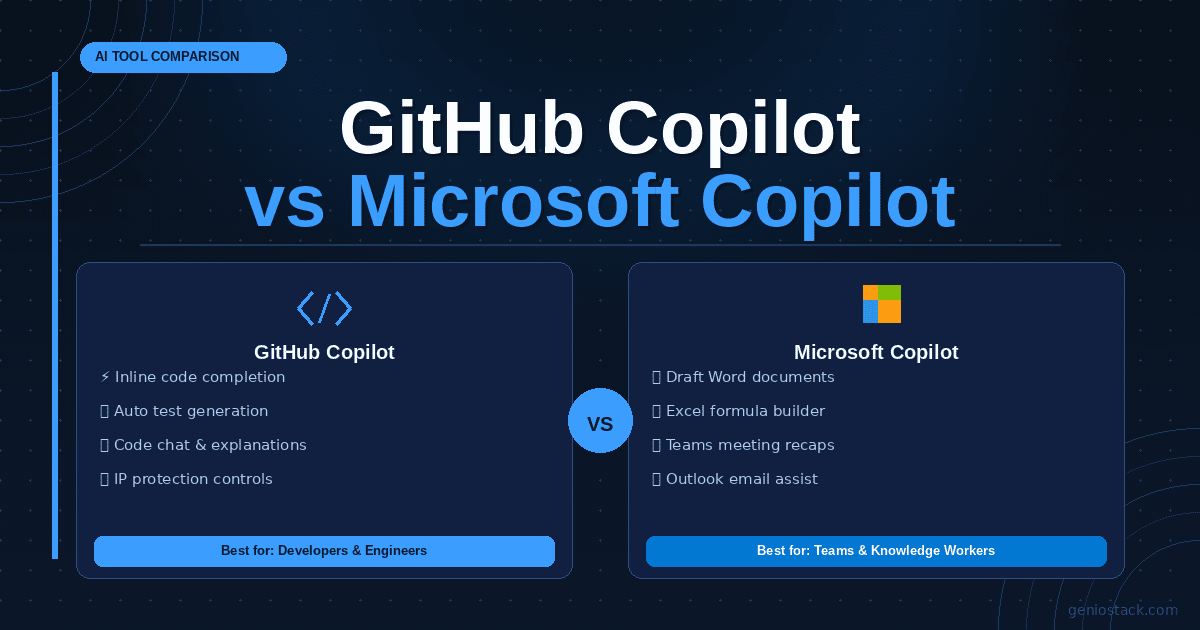
GitHub Copilot is an AI coding assistant built for developers — it writes, completes, and explains code inside editors like VS Code. Microsoft Copilot is a general-purpose AI assistant woven into Microsoft 365 apps like Word, Excel, and Teams. Same “Copilot” name. Completely different jobs.
You’ve probably searched this exact thing with mild frustration. Both say “Copilot.” Both are from Microsoft. Both claim to save you time. And yet they do almost nothing alike.
When someone says “I use Copilot,” you genuinely can’t tell which one they mean. That’s a problem — because choosing the wrong one doesn’t just waste money. It wastes the next three months of your workflow on a tool that was never designed for what you’re doing.
Here’s the thing: the confusion isn’t your fault. Microsoft named both products similarly, and most comparison posts just list features side by side without answering the real question underneath — which one belongs in your day?
By the time you finish reading this, you’ll know exactly which Copilot fits your work, what each one can and can’t do, and where the edge cases live that most guides skip entirely.
The right Copilot won’t feel like an upgrade. It’ll feel like it was already missing.
Table of Contents
What GitHub Copilot Actually Is (And Who It’s For)
GitHub Copilot is an AI pair programmer developed by GitHub in partnership with OpenAI. It lives inside your code editor — primarily Visual Studio Code, but also JetBrains IDEs, Neovim, and others. Its entire purpose is to help you write code faster.
When you’re mid-function and pause, GitHub Copilot suggests the next line — or the next twenty. It reads your comments and generates the code beneath them. It explains confusing code blocks, writes unit tests, catches bugs, and answers questions about your codebase through its chat interface.
This is a tool built by developers, for developers. If you’re not writing code, GitHub Copilot will feel like a very expensive autocorrect you can’t figure out how to use.
In practice, this usually means: a backend developer building an API endpoint, a data scientist writing a pandas transformation, a frontend engineer trying to remember the exact CSS flexbox syntax for the fourth time this week. That’s the audience. Everything about GitHub Copilot is optimised for that person.
💡 Key Insight GitHub Copilot doesn’t just autocomplete code — it understands the context of your entire open file, recent edits, and even related files in your project. That’s what makes its suggestions feel weirdly accurate rather than generic.
What it does well:
- Inline code completion that adapts to your personal coding style over time
- Natural language to code: comment in English, get working code back
- Multi-line function generation from a single description
- Code explanation and refactoring in plain language
- Test generation (unit tests, edge cases) without manual scaffolding
- GitHub Copilot Chat: a conversation interface for code-specific questions
What it doesn’t do:
- Write your emails
- Summarise your meeting notes
- Draft your quarterly report
- Help non-technical teammates with anything
What Microsoft Copilot Actually Is (And Who It’s For)
Microsoft Copilot is a different product entirely. Think of it as an AI assistant embedded across the Microsoft ecosystem — Word, Excel, PowerPoint, Outlook, Teams, and the broader Windows experience.
Where GitHub Copilot helps you write code, Microsoft Copilot helps you work with content. It drafts documents, summarises email threads, generates PowerPoint slides from a prompt, creates formulas in Excel, recaps Teams meetings, and answers questions about files stored in your Microsoft 365 environment.
The target audience here isn’t primarily developers. It’s knowledge workers — project managers, marketers, executives, analysts, HR teams, and anyone whose job runs on Microsoft Office.
📝 Note Microsoft Copilot has two flavours worth knowing: the free version (available in Windows 11, Bing, and the web) and Microsoft 365 Copilot, the paid tier that integrates deeply with your Office apps and your organisation’s data. Most of the powerful features — like drafting in Word or recapping Teams calls — require the paid Microsoft 365 Copilot licence.
In practice, this usually means: a marketing manager drafting a proposal in Word with AI help, a finance lead asking Copilot to build an Excel formula they’ve never written before, or a team lead asking it to summarise the last hour of a Teams call they missed. That’s the audience. It’s designed for people who live in Office, not in a terminal.
What it does well:
- Drafting, editing, and reformatting Word documents
- Generating and designing PowerPoint presentations from a prompt
- Writing and explaining Excel formulas, including complex nested ones
- Summarising email threads and suggesting replies in Outlook
- Recapping Teams meetings, listing action items, and flagging decisions
- Answering questions about your files and data within Microsoft 365
What it doesn’t do:
- Write or explain actual code
- Integrate with GitHub or code repositories
- Help with developer workflows in any meaningful way
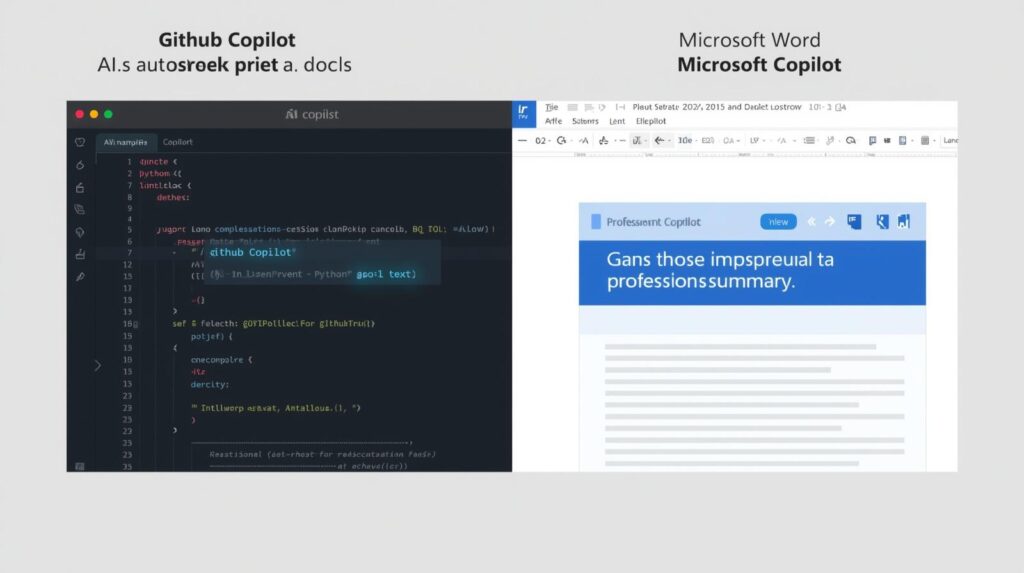
GitHub Copilot vs Microsoft Copilot: Head-to-Head Comparison
Here’s what the feature landscape actually looks like when you put them side by side. Read across the “Best For” column — that’s the column that matters most.
| Feature | GitHub Copilot | Microsoft Copilot | Best For |
|---|---|---|---|
| Primary use case | Writing and reviewing code | Creating and managing documents and content | Developers vs knowledge workers |
| Where it lives | VS Code, JetBrains, Neovim, GitHub.com | Word, Excel, PowerPoint, Outlook, Teams, Windows | Code editors vs Office apps |
| Language support | 30+ programming languages | Natural language (English and others) | Technical vs non-technical work |
| Chat interface | Copilot Chat (code-focused) | Microsoft Copilot chat (general purpose) | Code Q&A vs general AI assistant |
| Organisation data access | Your codebase and repositories | Your Microsoft 365 files and emails | Code context vs workplace context |
| Pricing model | Per-seat developer subscription | Microsoft 365 Copilot licence or free web version | Team size and budget |
| IDE integration | Deep, native | Minimal | Where you actually work |
| Test generation | Yes — core feature | No | Developer productivity |
| Meeting summaries | No | Yes (Teams integration) | Async teams |
| Free tier | Limited (GitHub Free plan) | Yes — basic version available | Try before buying |
⚠️ Important Don’t make the mistake of assuming Microsoft Copilot includes GitHub Copilot just because both live under Microsoft. They are separately licensed, separately priced products. If your team needs both, you pay for both.
The Pricing Breakdown (What You’re Actually Paying For)
Money matters. So here’s a plain-language version of what each tool costs, based on current published pricing from each platform.
GitHub Copilot:
- Free: Available for verified students and maintainers of popular open-source projects
- Individual: A monthly per-user fee, billed individually — covers personal accounts
- Business: A higher per-seat monthly cost — adds org-wide policy controls, audit logs, and IP protections
- Enterprise: The premium tier — adds Copilot Chat knowledge base access for your repositories, fine-tuned models, and deeper admin controls
Microsoft Copilot:
- Free (Copilot.microsoft.com or Windows): Basic AI assistant — web search, image generation, general Q&A. No Office integration.
- Microsoft 365 Copilot: Requires an existing Microsoft 365 subscription plus an additional per-user monthly licence. This unlocks the Word, Excel, Teams, and Outlook integration.
The honest version: GitHub Copilot is priced for individual developers and scales per seat. Microsoft 365 Copilot is priced for organisations, and the per-user cost is meaningfully higher — which makes the ROI question more important for teams evaluating it seriously.
💡 Pro Tip If you’re evaluating GitHub Copilot for your engineering team, check whether any of your developers already have access through open-source contributions or student status. It’s a genuine free trial before you commit a per-seat budget.
Where Most People Get the Decision Wrong
Here’s what most comparison posts skip: the choice isn’t always either/or.
A software development company could easily need both. Developers use GitHub Copilot in their editors. Project managers and executives use Microsoft 365 Copilot in their Office suite. They’re not competing for the same budget line. They’re solving different problems for different people in the same organisation.
The mistake people make is treating “Copilot” as a single category and trying to pick one. That framing is wrong from the start.
Ask yourself two separate questions:
- Do you (or your team) write code as a core part of the job? → GitHub Copilot is worth evaluating seriously.
- Do you (or your team) spend significant time in Word, Excel, Outlook, or Teams? → Microsoft 365 Copilot deserves a look.
If the answer to both is yes — you might need both, for different people.
If the answer to one is yes and the other is no — the choice just made itself.
A Real-World Scenario That Makes This Concrete
Imagine a 25-person startup. They have a product team of eight engineers, a marketing team of five, and a leadership and ops team of twelve.
The engineering team ships code every week. GitHub Copilot running in VS Code means each developer gets meaningful suggestions, faster test coverage, and less time staring at documentation for a function signature they’ve forgotten. Over a month, the time savings compound. That’s a clear ROI case.
The marketing and leadership team doesn’t write code. But they’re in Word drafting decks, in Outlook managing client communication, and in Teams running meetings. Microsoft 365 Copilot helps the marketing lead draft a product brief in ten minutes instead of forty. It helps the CEO get a Teams meeting recap without sitting through the recording. Different value, same “AI assistant” promise.
Neither tool would have helped the other group. That’s the point.
GitHub Copilot’s Honest Limitations
No tool is a clean win. Here’s what GitHub Copilot doesn’t do well — and what most reviews quietly skip.
It suggests confidently, even when it’s wrong. Copilot’s autocomplete is trained on public code, and it can generate plausible-looking code that contains subtle bugs or security vulnerabilities. You still need to review what it produces. Treat it as a fast first draft, not a final answer.
It’s less useful in niche or proprietary domains. If you’re working in a less common language, a highly specialised framework, or a codebase built around internal conventions Copilot has never seen — suggestions get significantly less accurate.
It doesn’t replace code review. It speeds up writing. It doesn’t catch logic errors that require understanding business context.
Microsoft Copilot’s Honest Limitations
The free version is much less capable than the paid one. The free Copilot you access on the web or in Windows is essentially a general AI chatbot. The Microsoft 365 Copilot that integrates with your actual emails, documents, and meetings is a completely different experience — and it sits behind a meaningful additional licence cost.
It requires clean, organised data to be truly useful. Microsoft 365 Copilot can access your organisation’s files and emails — but if your SharePoint is a mess or your email structure is chaotic, what it surfaces will reflect that chaos. Garbage in, garbage out applies here just as much as anywhere else.
Enterprise rollout isn’t instant. Getting Microsoft 365 Copilot deployed properly across an organisation involves admin setup, licensing, permissions, and often change management work. It’s not plug-and-play at scale.
💡 Key Insight The organisations that get the most from Microsoft 365 Copilot are the ones with clean, structured Microsoft 365 environments before they turn it on. The AI amplifies what’s already there — good or bad.
How to Decide: Three Questions That Cut Through the Noise
Skip the feature checklist. Answer these three questions and you’ll know.
1. What does your actual daily work look like? If your day involves writing code, debugging, and pulling up documentation — GitHub Copilot fits naturally. If your day involves drafting documents, managing emails, and sitting in meetings — Microsoft 365 Copilot is designed for you.
2. What tools do you already live inside? GitHub Copilot plugs into your editor. Microsoft Copilot plugs into Office. The best AI tool is the one embedded in the place you already spend your time — not one that requires you to change your workflow to use it.
3. What’s the cost of not solving this problem? If slow code output is costing your engineering team hours per week, GitHub Copilot has a measurable ROI case. If your team is drowning in email and manual document creation, Microsoft 365 Copilot addresses that directly. Pick based on the actual pain point, not the feature list.
Is GitHub Copilot the same as Microsoft Copilot?
Can I use GitHub Copilot if I’m not a developer?
Does Microsoft 365 Copilot include GitHub Copilot?
Which Copilot is better for a small business?
Is there a free version of either Copilot?
Will GitHub Copilot replace developers?
Which Copilot is better for content teams?
What You Now Know That Changes Things
Three things worth holding onto:
The name is the confusion, not the tools. GitHub Copilot and Microsoft Copilot happen to share a brand umbrella — but they’re as different as a scalpel and a spreadsheet. Stop evaluating them as alternatives to each other. Evaluate each one against the specific problem it was built to solve.
The right tool is the one that meets you where you already work. GitHub Copilot lives in your editor. Microsoft Copilot lives in your Office apps. An AI assistant you have to leave your workflow to use is one you’ll stop using.
Limitations matter as much as features. Both tools have genuine gaps. GitHub Copilot suggests confidently but requires review. Microsoft Copilot requires a clean data environment and a real licensing investment. Knowing this upfront means you set it up right the first time.
You don’t need the flashiest AI tool. You need the one that removes the specific friction slowing you down.
If you’re still figuring out where AI tools actually fit in your workflow — and what else is worth knowing beyond the obvious picks — explore more at Geniostack.com for practical, human-first breakdowns without the noise.