The best home office setup combines an ergonomic desk and chair, at least one quality external monitor, reliable peripherals, and proper lighting — all arranged to reduce fatigue and eliminate distractions. For remote professionals, this means treating your workspace with the same intention you would a corporate office, regardless of square footage.
Working from home sounds like a dream — until your back aches, your focus crumbles, and your kitchen table doubles as your boardroom. The reality is that where and how you work directly shapes how well you work. A poorly designed home office quietly drains your energy and caps your output, while a well-built one compounds your performance every single day.
Whether you’re squeezing a desk into a spare bedroom corner or converting an entire room into a professional workspace, the principles are the same: ergonomics, minimising friction, and building an environment your brain associates with focus. This guide breaks down every element of the best home office setups — from essential accessories to smart monitor configurations and small-space solutions — so you can build a workspace that works as hard as you do.
Key promise: By the end of this guide, you’ll know exactly which upgrades will give you the highest return on focus and comfort, no matter your budget or space constraints.
Table of Contents
What Makes a Home Office Setup Truly Productive?
A productive home office is not just about having expensive gear. It’s about removing the things that interrupt your concentration — physical discomfort, poor lighting, cluttered surfaces, and slow tools — and replacing them with deliberate, intentional choices.
Research from ergonomics institutes consistently shows that improper workstation design contributes to musculoskeletal issues, eye strain, and long-term fatigue. In practice, even small improvements — like raising your monitor to eye level or switching to a mechanical keyboard — create a noticeably calmer, more focused work experience within days.
Key insight: Your home office setup is a productivity tool. Every element either costs you energy or saves it.
The Foundation: Desk, Chair, and Ergonomics First
Before spending a cent on accessories or monitors, get your foundation right. Your desk and chair are the single biggest contributors to your long-term comfort and health as a remote worker.
Choosing the Right Desk for Your Work Style
For most remote professionals, a desk between 120 cm and 150 cm wide provides enough surface for a monitor, keyboard, and peripheral zone without feeling cramped. If your budget allows, a sit-stand (height-adjustable) desk is one of the highest-return investments you can make. Alternating between sitting and standing throughout the day is linked to reduced back pain and improved focus. Brands like Flexispot and IKEA’s UPPSPEL line offer reliable options at mid-range price points.
If you’re working with a small space, a corner desk or wall-mounted fold-down desk can reclaim floor space without sacrificing usable surface area.
The Chair: Where Most People Underspend
A cheap chair is one of the most expensive mistakes remote professionals make — paid for in physiotherapy bills and lost focus. Look for a chair with:
- Adjustable lumbar support
- Seat depth adjustment
- Armrests that move in at least two axes
- Breathable mesh or quality foam
You don’t need a $1,500 Herman Miller to get excellent support. Chairs from brands like Branch, Autonomous, or Hbada offer strong ergonomics at accessible prices. According to guidance from the Occupational Safety and Health Administration (OSHA), your feet should rest flat on the floor, your knees at roughly 90 degrees, and your monitor at or just below eye level.
Best Home Office Setups Accessories That Actually Matter
The accessories market is flooded with gadgets promising to transform your productivity. Most won’t. These are the ones that genuinely do.
The Core Accessories Every Remote Professional Needs
External keyboard and mouse: Using a laptop’s built-in keyboard forces your shoulders inward and your neck down. An external keyboard — placed flat or with a slight negative tilt — allows your wrists to sit in a neutral position. Pair it with a vertical or ergonomic mouse to reduce forearm rotation.
Monitor arm or stand: Raising your monitor to eye level is one of the cheapest, highest-impact changes you can make. A monitor arm also frees up significant desk real estate.
USB-C hub or docking station: If you’re on a laptop, a quality docking station lets you connect your monitor, keyboard, mouse, ethernet, and storage in a single cable. This alone eliminates cable chaos and makes hot-desking between home and office seamless.
Desk pad or mat: A large leather or felt desk pad unifies your workspace visually and protects your surface. It also makes mouse movement smoother and reduces wrist fatigue during long sessions.
Webcam and microphone: The built-in camera and mic on most laptops are adequate at best. A dedicated 1080p webcam (like the Logitech C920 or Elgato Facecam) and a USB microphone dramatically improve how you come across on video calls — which matters more than most remote workers realise.
In practice: You don’t need all of these at once. Start with the monitor arm and external keyboard — they create the biggest ergonomic shift for the lowest cost.
Best Home Office Setup for Productivity: Lighting and Environment
Even the best desk and chair underperform in a dark, cluttered, or noisy room. Your environment is part of your setup.
Lighting: The Underrated Productivity Tool
Poor lighting — particularly dim, warm, or strongly directional light — accelerates eye fatigue and affects your mood via circadian rhythm. The ideal home office has:
- Natural light positioned to the side (not behind or in front) of your monitor to prevent glare
- A bias light placed behind your monitor to reduce contrast fatigue
- A desk lamp with adjustable colour temperature for evening work sessions — warmer tones support natural wind-down
The American Academy of Ophthalmology recommends the 20-20-20 rule for screen workers: every 20 minutes, look at something 20 feet away for 20 seconds. Good ambient lighting supports this by making the contrast between your screen and surroundings less extreme.
Noise and Distraction Management
For remote professionals sharing a home, noise is one of the biggest productivity killers. Options vary by severity:
- Acoustic panels or foam on one or two walls significantly reduce echo in video calls
- Active noise-cancelling (ANC) headphones like the Sony WH-1000XM series or Bose QuietComfort 45 provide an on-demand focus bubble
- A white noise machine placed near the door helps when you can’t control external noise
Work from Home Desk Setup for Small Spaces
Not everyone has a dedicated room. Many remote professionals work from a corner of a bedroom, a living room alcove, or even a large closet conversion. Small-space setups have unique constraints — and creative solutions.
Making a Small Desk Setup Work
The goal in a small space is to maximise vertical real estate rather than horizontal spread. Key strategies include:
- Wall-mounted shelving above the desk keeps reference materials, speakers, and decor off the surface
- A compact ultrawide monitor (34 inches) replaces the need for two monitors while taking up less physical space than a dual-monitor arm arrangement
- Cable management trays mounted under the desk eliminate the visual noise of cables, which is especially important in small spaces where clutter feels amplified
- A pegboard panel mounted to the wall behind the desk creates modular, visible storage for accessories without consuming desk space
For truly minimal setups — a laptop and one monitor — a laptop stand with an external keyboard and mouse is the most space-efficient configuration possible, and it’s fully ergonomic when set up correctly.
Home Office Setup with Laptop and Monitor: The Smart Approach
Most remote professionals work primarily on a laptop, which creates a specific set of ergonomic and productivity challenges. The solution is a hybrid setup: your laptop as the brain, a larger external monitor as your primary display.
Setting Up Your Laptop and Monitor Correctly
Place your external monitor directly in front of you at eye level, and position your laptop to the side on a stand in clamshell mode (lid closed) or as a secondary display. This gives you the best of both worlds — the portability of a laptop with the screen real estate of a desktop.
Connect everything through a single docking station or USB-C hub to keep the setup clean. You should be able to leave and return to your desk in seconds by plugging in or out one cable.
| Configuration | Best For | Trade-offs |
|---|---|---|
| Laptop only | Travel, hot-desking | Neck strain, limited screen space |
| Laptop + external monitor | Most remote professionals | Requires stand + hub |
| Laptop in clamshell + monitor | Power users, video calls | No quick reference to laptop screen |
| Laptop + dual monitors | Developers, designers, traders | Requires more desk space and budget |
Best Dual Monitor Setup for Home Office
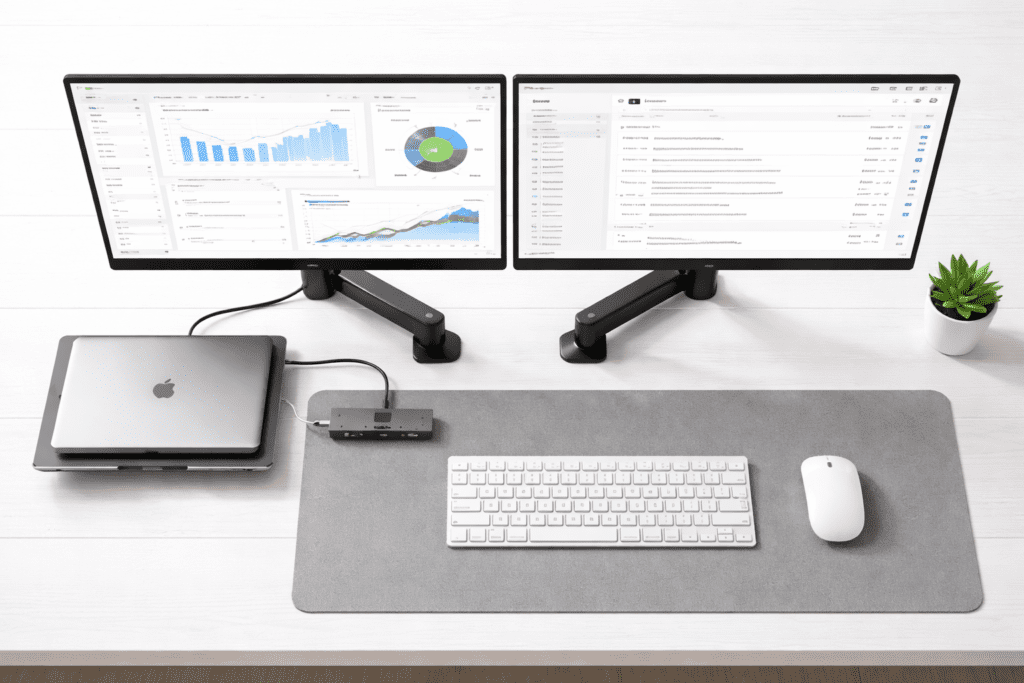
A dual monitor setup is one of the most impactful configurations for professionals who multitask — comparing documents, running code alongside a browser, or monitoring dashboards while working in another app.
How to Arrange Dual Monitors for Maximum Efficiency
The most ergonomically sound dual monitor configuration depends on how you split your attention:
Equal use across both monitors: Place them side by side at the same height, angled inward at approximately 15–30 degrees each, forming a gentle arc around your focal point. Your neck should move minimally between screens.
Primary + secondary monitor: Position your primary monitor directly in front and the secondary to the side at roughly 45 degrees. Use the secondary for reference, communication, or monitoring.
Key considerations for dual monitor setups:
- Match brands and sizes where possible for consistent colour calibration and brightness
- Use a dual monitor arm to free up desk space and enable height/angle adjustments independently
- Ensure your GPU can drive two monitors at your desired resolution and refresh rate — most modern machines handle this easily, but it’s worth confirming
- 27-inch monitors at 1440p (QHD) resolution offer the best balance of screen space and pixel density for most professional workloads
Best for: Developers, writers who research heavily, financial analysts, video editors, and anyone running more than four persistent windows simultaneously.
Productivity Software and Digital Tools to Complete Your Setup
A great physical setup deserves equally intentional digital hygiene. The tools you use on-screen are as much a part of your home office as the chair you sit in.
A window management tool (like Rectangle on macOS or PowerToys FancyZones on Windows) allows you to snap and resize application windows to precise zones — especially useful on a wide or ultrawide monitor. Pair this with a focus or time-blocking app to create structure around your workday.
For remote teams, a stable internet connection is non-negotiable. A wired ethernet connection via your docking station is always preferable to Wi-Fi for video calls — it eliminates packet loss, reduces latency, and is one of the most underrated upgrades a remote professional can make.
For more productivity strategies and remote work tools, explore Geniostack’s resource hub — built for professionals who want to work smarter.
Comparison: Budget vs Mid-Range vs Premium Home Office Setups
| Element | Budget (Under $500) | Mid-Range ($500–$1,500) | Premium ($1,500+) |
|---|---|---|---|
| Desk | IKEA LINNMON + legs | Flexispot sit-stand | Uplift V2 Pro |
| Chair | Hbada ergonomic | Branch Ergonomic | Herman Miller Aeron |
| Monitor | 24″ 1080p IPS | 27″ 1440p IPS | 32″ 4K or ultrawide |
| Keyboard | Logitech K380 | Keychron K2 | Custom mechanical |
| Webcam | Logitech C920 | Elgato Facecam | Sony ZV-E10 as webcam |
| Hub/Dock | Anker 7-in-1 USB-C | CalDigit TS3 Plus | Thunderbolt 4 dock |
| Best for | First-time WFH setup | Established remote worker | Power user / content creator |
Even a budget setup, assembled thoughtfully, outperforms a disorganised expensive one. Prioritise ergonomics first, then display quality, then everything else.
According to Buffer’s State of Remote Work report, one of the top challenges remote workers consistently report is difficulty unplugging and staying focused — both of which a well-designed home office directly addresses.
What is the best home office setup for productivity?
What work from home setup accessories do I actually need?
How do I set up a home office in a small space?
Is a dual monitor setup worth it for working from home?
What’s the best monitor setup for a home office with a laptop?
How much should I spend on a home office setup?
Does lighting really affect home office productivity?
Building the best home office setup is not a one-time purchase — it’s a series of intentional decisions that compound over time. The three most important takeaways from this guide are:
- Ergonomics first: Your chair and monitor height matter more than any accessory. Get these right before spending elsewhere.
- Match your setup to your workflow: Dual monitors for multitaskers, ultrawide for space-constrained desks, laptop-plus-monitor for mobility-dependent professionals.
- Small, consistent upgrades beat one expensive overhaul: A monitor arm, external keyboard, and bias lighting can transform a frustrating workspace into a focused one — often for under $150.
Your workspace is the environment your best work lives in. Give it the attention it deserves.
Ready to optimise the rest of your remote work toolkit? Explore productivity guides and digital tools on Geniostack — built for professionals who work smarter, not just harder. →