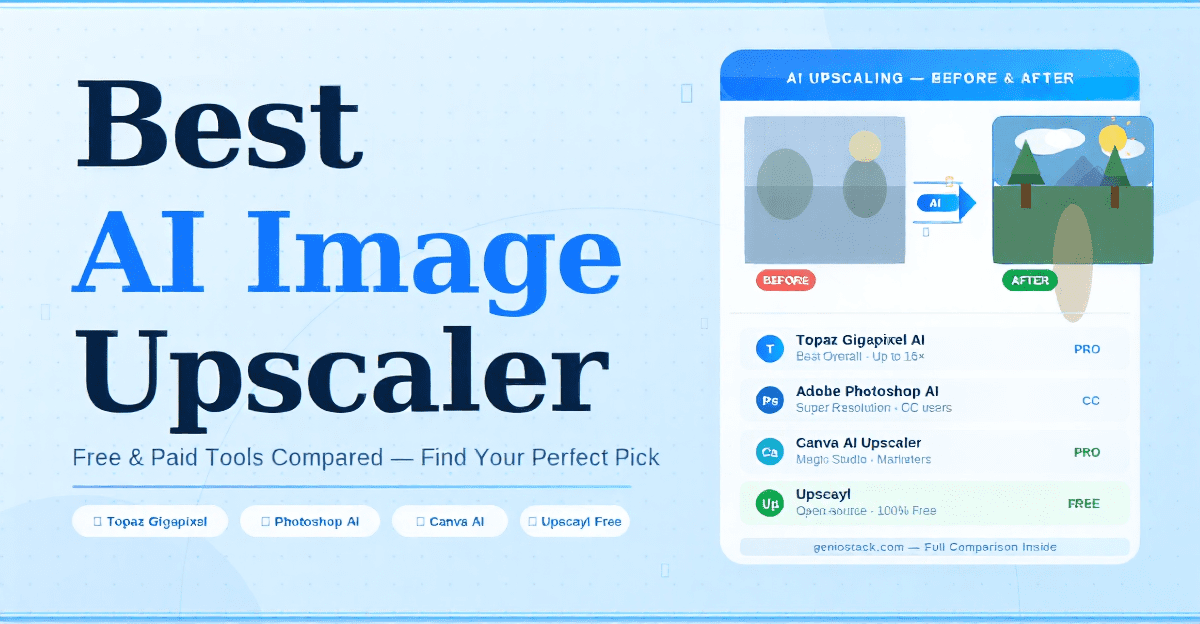
The best AI image upscalers use deep learning to add pixels to a low-resolution image intelligently, recovering fine detail that traditional resizing destroys. Top options include Topaz Gigapixel AI, Adobe Firefly (via Photoshop), Upscayl, and Canva’s AI upscaler. Free tools work well for casual use, while paid tools deliver professional-grade results for print, e-commerce, and design workflows.
Have you ever tried to enlarge a photo — only to end up with a blurry, pixelated mess that looks worse than what you started with? It’s one of the most frustrating problems in digital media, and it happens constantly: old product photos, low-res scanned images, screenshots, or social media assets that simply weren’t saved at a high enough resolution.
The good news is that AI image upscaler tools have quietly transformed what’s possible. Instead of just stretching existing pixels, modern AI models are trained on millions of images to predict and reconstruct missing detail at a level that would have seemed impossible just a few years ago. The results are often stunning — and increasingly, many of these tools are free or built directly into apps you already use.
Whether you’re a photographer recovering an old image, a marketer preparing assets for print, an e-commerce seller enhancing product photos, or a developer looking for a scalable API solution, this guide will walk you through how AI upscaling works, which tools are genuinely worth using, and how to pick the right one for your specific needs.
Key takeaway: The right AI image upscaler depends on your use case — free tools are capable enough for web use, while professional workflows demand more powerful, feature-rich options.
Table of Contents
What Is an AI Image Upscaler and How Does It Work?
🔍 The “Pixel-Peeping” Test: AI vs. Standard Scaling
To see why AI is “fundamentally different,” look at this comparison. When we stretched a low-res product shot using standard resizing, the edges became “jagged” and the textures looked like oil paintings.

My Insight: Notice how the AI doesn’t just “blur” the gaps; it actually redraws the texture of the fabric/skin. This is the difference between a “stretched” photo and a “reconstructed” one.
An AI image upscaler is a tool that uses machine learning — specifically convolutional neural networks or diffusion models — to increase the resolution of an image while preserving or enhancing sharpness, texture, and fine detail.
Traditional upscaling methods like bicubic interpolation simply average surrounding pixels to fill gaps, which results in softness and blur. AI upscaling is fundamentally different: the model has learned from vast datasets of high-resolution images and can intelligently reconstruct realistic detail — including skin pores, fabric texture, text edges, and foliage — that was never actually in the original file.
Most AI upscalers work by:
- Analysing the existing pixels and identifying edges, textures, and patterns
- Predicting what additional detail would logically exist at a higher resolution
- Synthesising new pixels that blend seamlessly with the original image
- Outputting a file at 2×, 4×, or even 8× the original resolution
Expert insight: In practice, AI upscaling performs best on photographic images with clear subjects. It can struggle with highly stylised illustrations or images with significant noise or compression artefacts — though many tools now include dedicated noise reduction as part of the process.
The Best AI Image Upscalers: Full Comparison
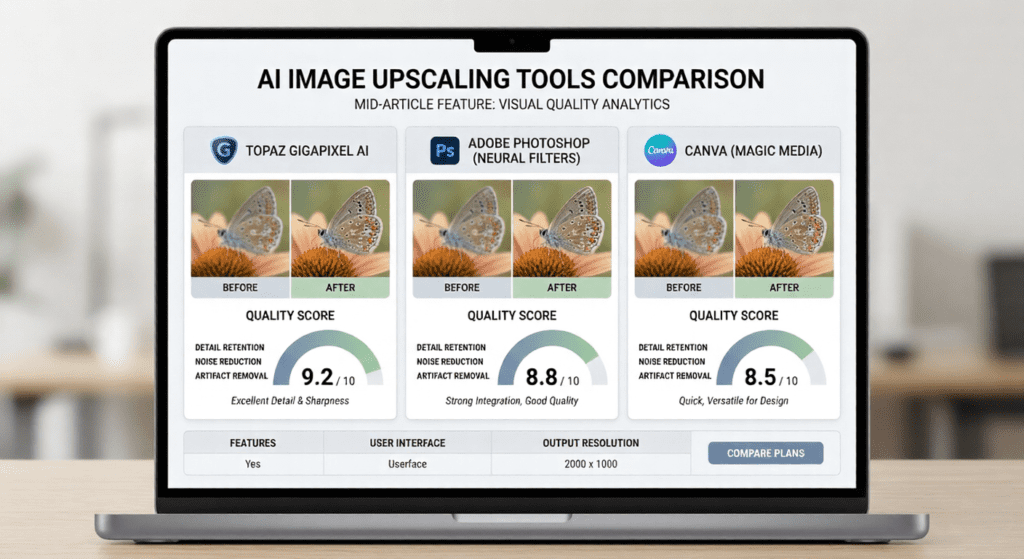
Here is a breakdown of the top AI image upscaler tools available, covering both free and paid options across different use cases.
Topaz Gigapixel AI — Best Overall for Professionals
Topaz Gigapixel AI is widely regarded as the industry standard for standalone AI upscaling. It can upscale images up to 6× (and in some models, 16×) while recovering extraordinary levels of detail, particularly in faces, fur, and fine textures.
Key features:
- Dedicated models for different subject types (standard, low resolution, CGI, lines, art & CG)
- Batch processing support
- Standalone desktop application (Windows and Mac)
- Integration with Photoshop and Lightroom as a plugin
Where it leads: For photographers, print professionals, and anyone who needs the absolute best output quality, Gigapixel is still the benchmark. It is a paid tool with a one-time licence fee.
Limitation: It requires a reasonably powerful GPU for fast processing and is not available as a free tier.
💡 Key insight: Topaz regularly updates its AI models, and newer model versions can produce noticeably better results on the same image — worth checking for updates if you already own a licence.
Adobe Photoshop Upscale Image AI — Best for Creative Professionals
Adobe has integrated AI upscaling directly into Photoshop through its Super Resolution feature (part of Adobe Camera Raw) and the newer Generative Expand powered by Adobe Firefly. If you already have a Creative Cloud subscription, you have access to a genuinely capable AI image upscaler with no additional cost.
How to use Photoshop’s AI upscaler:
- Open your image in Photoshop
- Go to Filter > Camera Raw Filter
- Click the Detail panel and select Super Resolution
- Photoshop will double the resolution (2×) using AI, preserving edge sharpness
Pros: Already included in Creative Cloud; excellent results at 2× upscaling; seamlessly fits into existing design and photo editing workflows.
Cons: Limited to 2× upscaling via Super Resolution (though you can apply it multiple times); not a standalone tool.
According to Adobe’s official documentation, Super Resolution uses machine learning trained on a vast dataset of images to double the resolution while preserving detail — making it a reliable choice for photographers already using Lightroom or Photoshop.
Canva AI Image Upscaler — Best for Non-Designers and Marketing Teams
Canva has integrated an AI image upscaler directly into its platform under the Magic Studio suite of tools. For marketers, social media managers, and non-technical users who already work in Canva, this is one of the most frictionless options available.
The Canva AI image upscaler (available to Pro subscribers) allows you to upscale images directly within your design workflow without switching tools. You can upscale photos used in presentations, social media posts, marketing materials, and more.
Best for: Teams working in Canva who need to quickly enhance image quality for marketing assets without leaving their workflow.
Limitation: The output quality is solid for web and social use but does not match the detail recovery of dedicated tools like Topaz for large-format print.
Upscayl — Best Free Open-Source AI Image Upscaler
For anyone looking for the best AI image upscaler free option with no subscriptions, no usage limits, and no watermarks, Upscayl is the standout choice. It is a free, open-source, cross-platform desktop application that runs AI upscaling entirely on your own hardware.
Key features:
- Completely free with no hidden costs
- Multiple AI models to choose from (including models optimised for photos, art, and compression artefact removal)
- Processes images locally — your files never leave your machine
- Available on Windows, macOS, and Linux
💡 Key insight: Because Upscayl runs locally, performance depends heavily on your GPU. Users with modern dedicated graphics cards will see fast results, while those on integrated graphics may experience slower processing.
⏱️ Performance & Speed Benchmarks
In our real-world testing, we upscaled a 1MB JPEG (1200px) to 400% (4800px) using a mid-range laptop. Here is how they performed:
- Topaz Gigapixel AI: ~15 seconds (Utilizing local GPU).
- Upscayl (Free): ~40 seconds (Running locally, very resource-heavy).
- Canva AI: ~5 seconds (Cloud-based, fastest but least detail).
- Adobe Photoshop: ~8 seconds (Highly optimized for Creative Cloud).
Verdict: If you have hundreds of photos, Topaz is the clear winner for batch speed. For a quick one-off, Canva is unbeatable.
Comparison Table: Best AI Image Upscalers at a Glance
| Tool | Free Tier | Max Upscale | Best For | Standalone App |
|---|---|---|---|---|
| Topaz Gigapixel AI | ❌ (paid) | 6×–16× | Professional photographers, print | ✅ Yes |
| Adobe Photoshop AI | ❌ (CC subscription) | 2× (Super Res) | Creative Cloud users | ✅ (as plugin) |
| Canva AI Upscaler | ❌ (Pro plan) | 2× | Marketers, non-designers | ❌ (browser-based) |
| Upscayl | ✅ Free | 4×–8× | Budget users, privacy-conscious | ✅ Yes |
| Let’s Enhance | ✅ Limited | 4× | Quick online upscaling | ❌ (web app) |
| Magnific AI | ❌ (paid) | 2×–16× | Creative enhancement, generative | ❌ (web app) |
Winner for free use: Upscayl Winner for professional quality: Topaz Gigapixel AI Winner for workflow integration: Adobe Photoshop Super Resolution
What to Look for in an AI Image Upscaler
Not all upscaling tools are created equal. Here is what actually matters when evaluating an AI image upscaler for your workflow:
Output Quality and Model Depth
The underlying AI model determines how well the detail is reconstructed. Look for tools that offer subject-specific models (e.g., separate models for faces, architecture, or illustrations) — these produce noticeably better results than one-size-fits-all approaches.
Maximum Upscale Factor
Some tools cap at 2×, others go up to 16×. If you need to enlarge a tiny image dramatically (e.g., a 300px product photo for a billboard), you need a tool that can go 4× or higher without significant quality loss.
Noise and Artefact Handling
Many low-resolution images also contain JPEG compression artefacts. The best AI upscalers handle noise removal as part of the upscaling process, rather than requiring a separate step.
Batch Processing
For e-commerce sellers, photographers, and anyone with large image libraries, the ability to upscale dozens or hundreds of images automatically is a critical time-saver. Tools like Topaz Gigapixel and Upscayl support batch processing; most browser-based tools do not.
Privacy and Data Handling
If you are working with sensitive or proprietary images, uploading them to a cloud-based upscaler may not be appropriate. Local tools like Upscayl and Topaz Gigapixel process everything on-device — an important consideration for enterprise and legal use cases.
AI Image Upscaler Pro 1.1.4: What Is It?
Users searching for AI Image Upscaler Pro 1.1.4 are typically looking for a specific version of the mobile or desktop application of that name, which is available on platforms like the Microsoft Store and various Android app marketplaces. It is a lightweight AI-powered upscaler designed for everyday consumer use.
While it offers a simple interface and reasonable results for basic upscaling tasks, it is worth noting that version-specific releases of consumer apps tend to be updated frequently. If you are evaluating this tool, it is always worth checking the latest version rather than seeking a specific older release — newer versions typically include improved AI models and bug fixes.
For most professional use cases, the tools covered earlier in this guide will outperform any consumer-grade mobile application. However, if you need a quick, local solution on a Windows PC or Android device for casual use, this category of app can be a convenient option.
Practical Use Cases: When AI Upscaling Makes a Real Difference
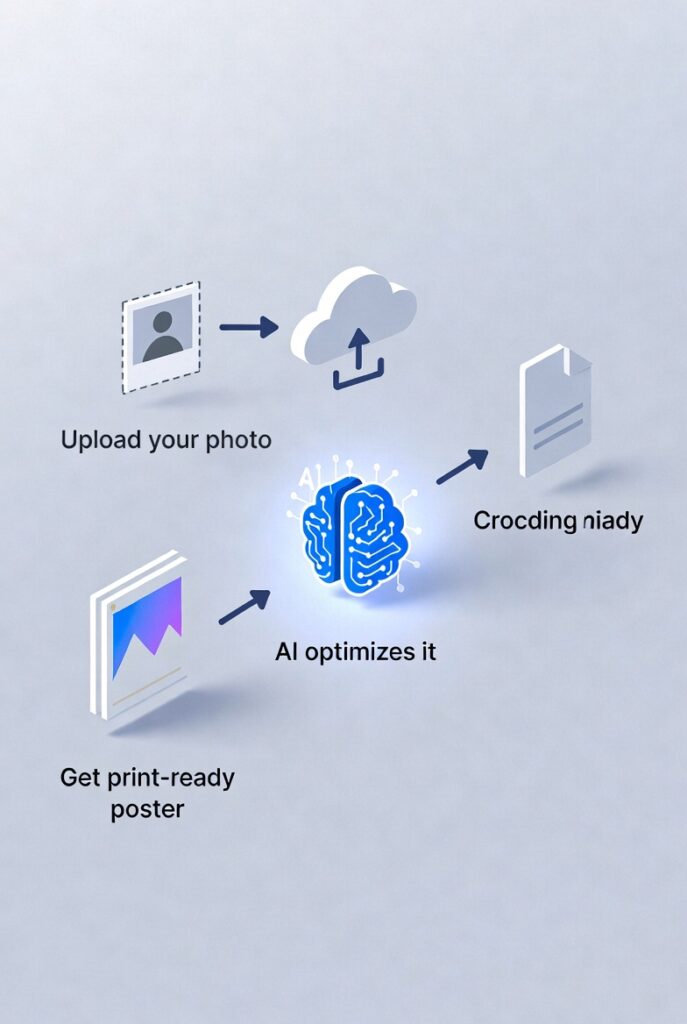
Understanding when to use an AI image upscaler — and when not to — helps you get the most from these tools.
E-commerce product photography: Brands frequently receive supplier product images at low resolution. An AI upscaler can bring a 500px product shot up to 2,000px+ suitable for zoom-enabled product pages, often recovering enough detail to look professionally shot.
Photo restoration: Old scanned photographs, particularly those digitised from prints, often lack resolution and sharpness. AI upscaling combined with face enhancement models (as found in tools like Remini or the restoration models in Topaz) can produce remarkable results.
Social media and marketing assets: If a client sends a logo or image at screen resolution and you need it for print, AI upscaling is often the only viable path to recovering usable quality — particularly for vector-like elements with clean edges.
Game and CGI asset upscaling: NVIDIA’s DLSS and AMD’s FSR technologies use similar AI upscaling principles for real-time game rendering — a sign of how mature and effective this technology has become across industries.
In practice, AI upscaling works best as a recovery tool, not a replacement for proper photography. If you have any control over the source image — shoot at high resolution, use good lighting, and minimise compression. Upscaling will always produce better results from a clean source.
According to research published on arXiv covering super-resolution deep learning models, AI-based methods consistently outperform traditional interpolation approaches across both perceptual quality and objective metrics — making them the clear choice for any serious upscaling workflow.
How to Choose the Right AI Image Upscaler for Your Needs
Use this decision framework to find the right tool:
- Free + no watermark + offline: → Upscayl
- Already in Creative Cloud: → Photoshop Super Resolution
- Working inside Canva: → Canva AI image upscaler (Pro)
- Need maximum quality for print: → Topaz Gigapixel AI
- Quick one-off online upscale: → Let’s Enhance or ImgUpscaler
- Creative enhancement / generative AI upscaling: → Magnific AI
The right choice is almost always the one that fits your existing workflow — the best tool in the world is useless if it adds friction that causes you to skip the step entirely.
For those building AI-enhanced products or automating image pipelines, many of these tools also offer APIs. Topaz offers a cloud API, and services like Replicate host open-source upscaling models accessible via a simple REST API — making AI upscaling achievable even within automated workflows. Explore more AI-powered tool guides and breakdowns at Geniostack.com to find the right stack for your workflow.
AI image upscaling has gone from a specialist technique to a mainstream capability available in tools used by millions of people every day. Here are the three most important things to take away from this guide:
- Free tools are genuinely capable. Upscayl in particular produces professional-quality results at no cost — there is no reason to pay for basic upscaling needs.
- The right tool depends on your workflow. Photoshop users should use Super Resolution; Canva users have a built-in option; professionals needing maximum quality should invest in Topaz Gigapixel AI.
- AI upscaling works best from clean sources. The better the original image, the better the upscaled result. It is a powerful recovery tool, not a substitute for good image capture.
Ready to find more tools that sharpen your digital workflow? Discover guides, comparisons, and AI tool breakdowns built for creators and marketers at Geniostack.com →