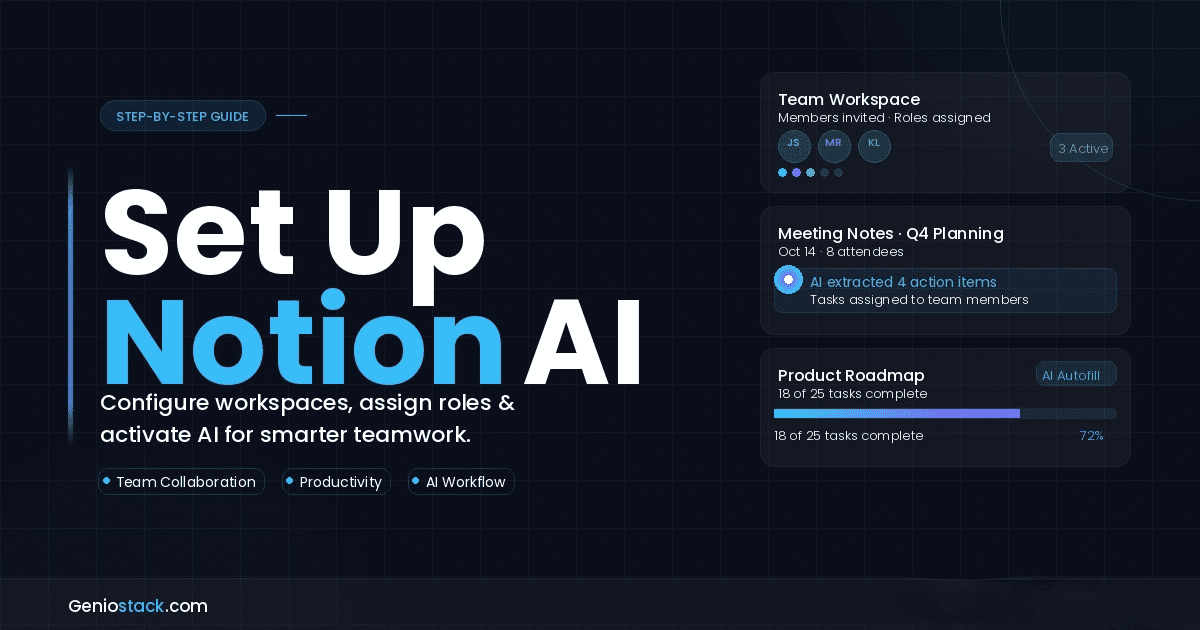
Setting up Notion AI for team collaboration involves creating a shared workspace, inviting members with defined roles, enabling Notion AI from your plan settings, and integrating AI-assisted tools — such as auto-summaries, action item extraction, and smart search — into your team’s daily workflows. The entire process can be completed in under 30 minutes.
Every team hits the same wall eventually: scattered notes across apps, missed action items buried in long meeting docs, and onboarding documents no one can find. Notion promised to fix all of that, and with Notion AI now woven into its platform, that promise has gotten dramatically closer to reality.
Whether you’re managing a remote startup team or coordinating a marketing department, learning to properly set up Notion for team use — with AI fully activated — is one of the highest-leverage investments you can make in your team’s productivity stack. This guide walks you through every step: from creating your workspace and inviting members, to unlocking AI features and building the kind of shared system your team will actually use.
By the end, you’ll have a fully operational Notion AI environment tailored for collaboration — not just a blank page everyone ignores.
Table of Contents
What Is Notion AI and Why Teams Need It
Notion AI is the built-in artificial intelligence layer within Notion that helps teams write, summarise, translate, brainstorm, and extract information directly inside their workspace — without switching to another tool.
Unlike standalone AI tools bolted onto a project management system, Notion AI is contextually aware. It can summarise a project brief, pull action items from a meeting note, or help a team member draft a proposal — all from within the same page where the original content lives.
Why this matters for teams: The real power isn’t any single AI feature. It’s the elimination of friction. When AI assistance lives inside the same tool your team uses to plan, document, and communicate, adoption is dramatically higher than when it’s a separate subscription everyone forgets to open.
According to Notion’s official documentation, Notion AI can be accessed directly within pages, databases, and meeting notes — making it one of the most seamlessly integrated AI tools available for knowledge workers.
Step-by-Step: How to Set Up Notion AI for Team Collaboration
Step 1: Create or Configure Your Team Workspace
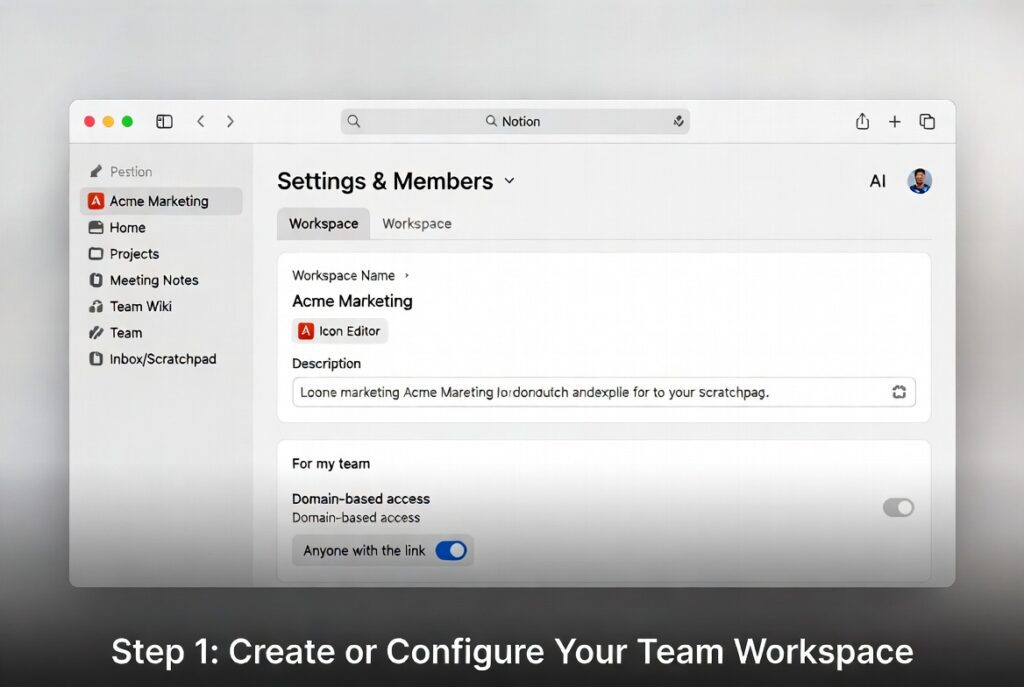
If you’re starting fresh, go to notion.so and sign up with your work email. During setup, choose “For my team” when prompted. This creates a shared workspace rather than a personal one.
If you already have a Notion account, navigate to Settings & Members → Workspace and confirm the workspace name and icon reflect your team identity. A named workspace (e.g., “Acme Marketing”) helps members orient quickly during onboarding.
Pro tip from practice: Teams that use a dedicated work email domain during setup can later enable domain-based access, which allows anyone with a matching email address to request access automatically — reducing admin overhead significantly.
Step 2: Upgrade to a Plan That Includes Notion AI
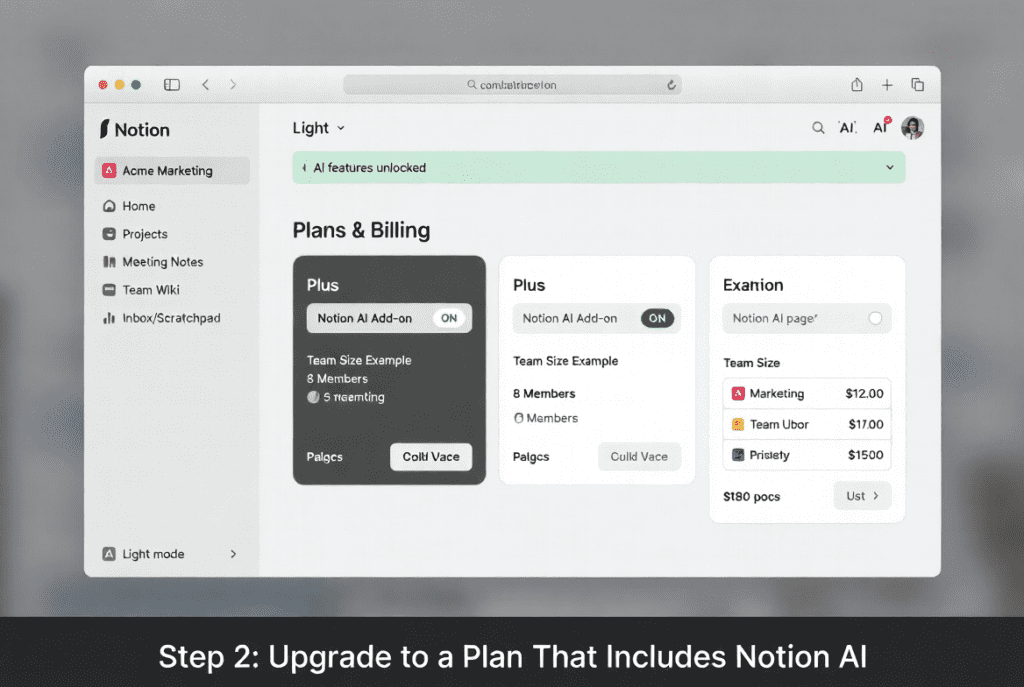
Notion AI is an add-on or included feature depending on your plan tier. As of the current plan structure, Notion AI requires either the Plus plan or above, or a separate Notion AI add-on.
To upgrade: Go to Settings → Plans and select the plan appropriate for your team size. For most small-to-medium teams, the Plus plan with the AI add-on covers everything covered in this guide.
Limitation to know: Notion AI usage may be subject to monthly limits on lower-tier plans. If your team is AI-heavy — running daily meeting summaries, drafting multiple documents per day — consider the Business plan to avoid hitting caps.
Step 3: Invite Team Members and Assign Roles
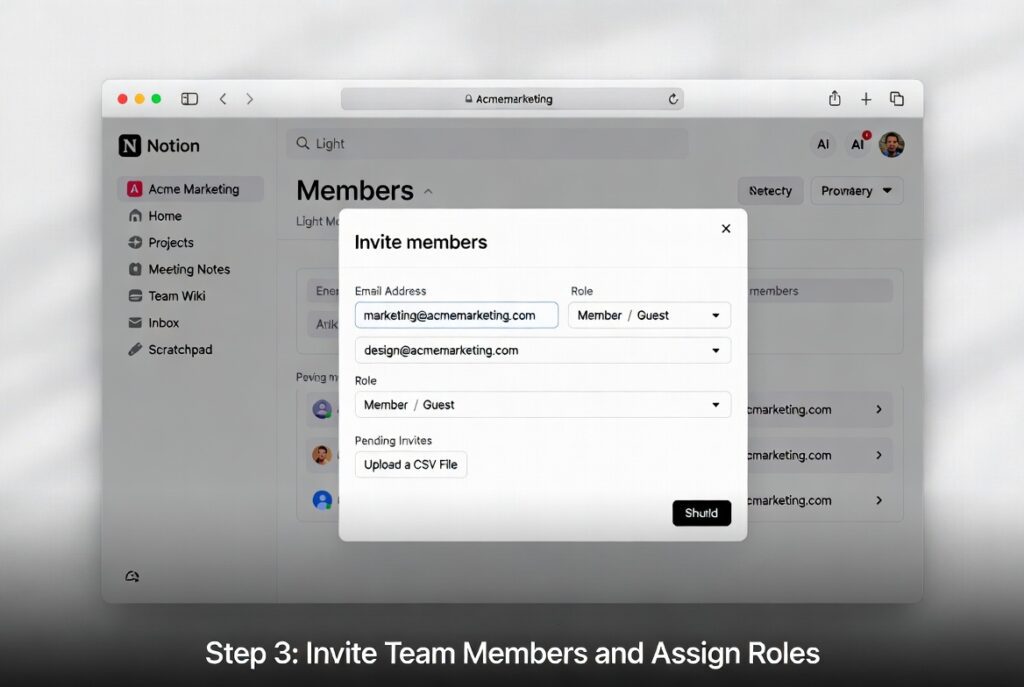
Navigate to Settings & Members → Members, then select Invite members. Enter email addresses individually or upload a CSV for bulk invites.
Notion offers three core member roles:
- Owner — Full control over workspace settings, billing, and permissions
- Member — Can create, edit, and share pages within permitted sections
- Guest — Read-only or limited access, ideal for external collaborators or clients
Best practice: Assign the minimum necessary permissions for each role. Guests, for example, should only access the specific pages they need — not the entire workspace. This protects sensitive internal documents and keeps the workspace clean.
Step 4: Structure Your Workspace for Team Use
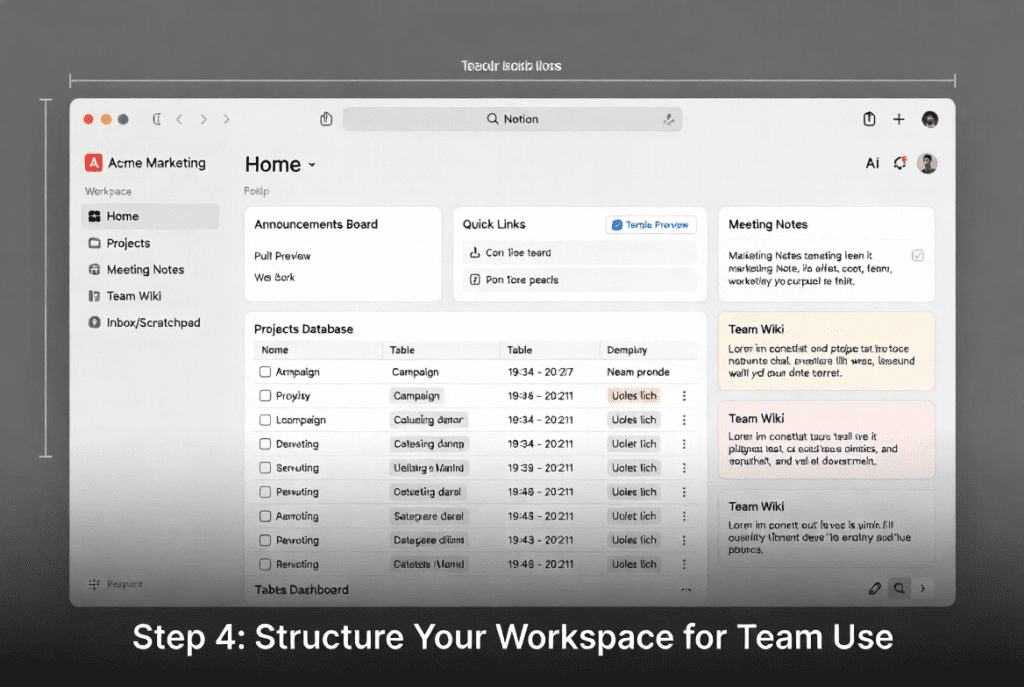
Before activating AI features across the team, build a foundational page structure. A clean workspace dramatically improves AI output quality because AI features reference the content around them.
A proven team structure looks like this:
- Home — A shared dashboard with announcements and quick links
- Projects — A database of active and archived projects
- Meeting Notes — A templated, date-stamped database for all meetings
- Team Wiki — SOPs, onboarding docs, and reference material
- Inbox / Scratchpad — Personal capture space for each member
Encourage team members to use Notion’s built-in templates to populate each section. This gives AI features consistent, well-formatted content to work with from day one.
Step 5: Enable and Configure Notion AI Features
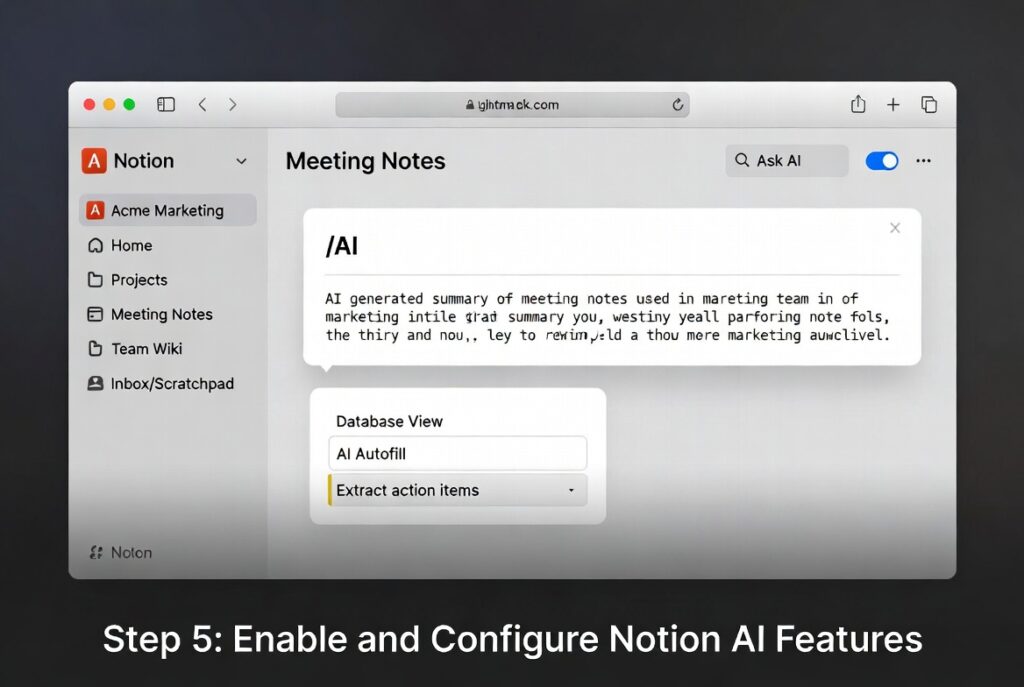
With your plan active, Notion AI is available throughout the workspace. Here’s where to activate the most impactful features:
- Open any page and press the spacebar to trigger the AI prompt panel, or type
/AIto see available AI actions - In database views, enable AI autofill by adding an AI property to a database — this lets AI automatically fill fields like summaries, tags, or sentiment based on page content
- In meeting note templates, add the AI action items block — this automatically extracts tasks from meeting notes with one click
- Enable AI-assisted search by using the top search bar and toggling “Ask AI” — team members can ask natural language questions about workspace content
Key insight: Notion AI’s value multiplies with content volume. A workspace with three months of meeting notes, project documents, and wiki pages will generate dramatically better AI summaries and answers than a fresh workspace.
Step 6: Set Team Norms for AI Usage
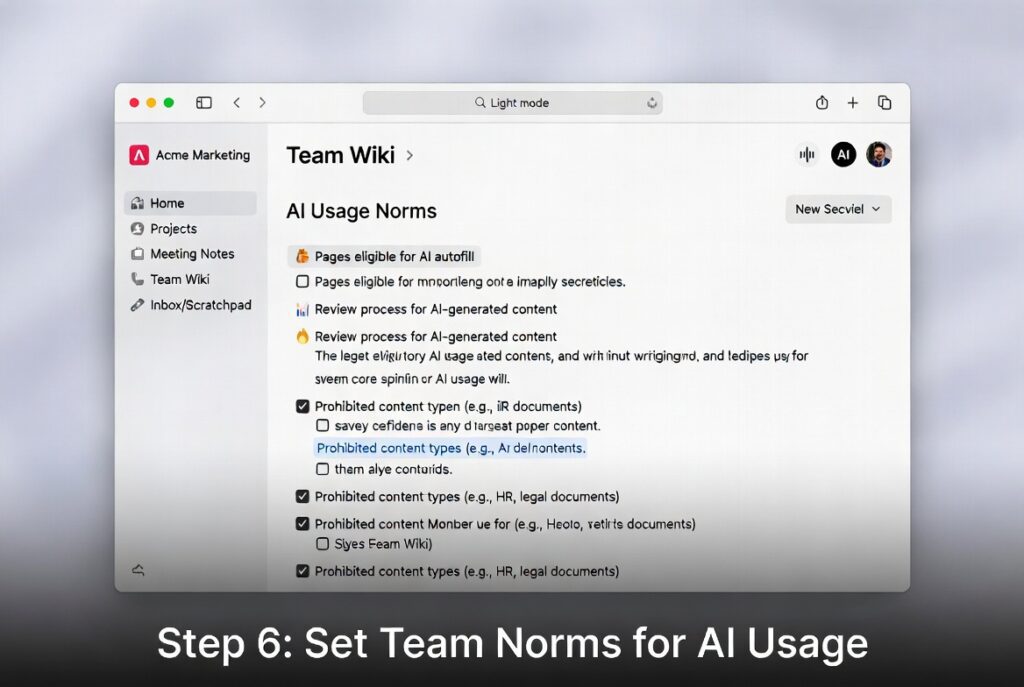
This step is consistently overlooked — and it’s where most teams fail to get ROI from their AI tools. Define how your team will use Notion AI before rolling it out:
- Which pages or databases should have AI autofill enabled?
- Who is responsible for reviewing AI-generated summaries before distribution?
- Are there content types (HR documents, legal drafts) where AI should not be used without review?
Document these norms in your Team Wiki so new members are aligned from day one.
Notion AI Collaboration Features: A Comparison Table
| Feature | Best For | Availability |
|---|---|---|
| AI Page Summary | Long documents, project briefs | Plus + AI add-on |
| AI Action Items | Meeting notes, project updates | Plus + AI add-on |
| AI Autofill (databases) | CRMs, project trackers, content calendars | Plus + AI add-on |
| AI Q&A (search) | Knowledge retrieval across workspace | Plus + AI add-on |
| AI Writing Assistant | Drafts, edits, translations | All AI plans |
| Best for most teams | Meeting notes + AI autofill combo | Plus plan |
Real-World Use Case: How a Remote Marketing Team Uses Notion AI
Consider a 12-person remote marketing team spread across three time zones. Before Notion AI, their meeting notes were inconsistently formatted, action items got lost, and weekly updates required a 30-minute manual consolidation process.
After setting up Notion with the structure described above and enabling AI action item extraction in their meeting notes database, the team reduced post-meeting admin from 30 minutes to under five. Every meeting note now automatically surfaces a bulleted list of action items, tagged to the relevant team member.
Their content calendar database uses AI autofill to generate a one-sentence summary of each content brief — making weekly stand-ups faster and reducing the time managers spend reviewing briefs before approval.
This is the practical difference between Notion as a document app and Notion as a collaborative operating system. For teams looking to build intelligent, connected workflows across every tool they use, exploring what’s possible at Geniostack.com is a natural next step — it’s built around exactly this kind of productivity thinking.
Common Mistakes When Setting Up Notion AI for Teams
Skipping the workspace structure phase. Teams that activate AI before building a coherent page hierarchy find that AI outputs are shallow and inconsistent. Structure comes first.
Giving everyone Owner access. It feels generous, but it creates permission chaos. Start restrictive and expand access as needed.
Not using templates for recurring content. Notion AI works best on consistently formatted content. Meeting notes without a template produce inconsistent AI summaries. Enable database templates immediately.
Forgetting guests need explicit page shares. Guests cannot see pages unless they are individually shared with them. This is a frequent source of “I can’t find the doc” complaints from external collaborators.
According to Notion’s team collaboration guide, permission settings are one of the top sources of confusion for new teams — reviewing them during initial setup saves significant troubleshooting later.
Notion AI vs Other AI Collaboration Tools
| Tool | AI Integration | Best For | Pricing Model |
|---|---|---|---|
| Notion AI | Native, contextual | All-in-one knowledge management | Per seat + AI add-on |
| Confluence + AI | Plugin-based | Enterprise documentation | Per user (expensive) |
| ClickUp AI | Task-focused | Project management heavy teams | Per seat |
| Coda AI | Formula-native | Data-driven workflows | Per seat |
| Winner | Notion AI | Teams that document AND manage projects | Mid-range |
Notion AI wins for teams that want documentation, project management, and AI in a single tool rather than a fragmented stack. The trade-off is that very data-heavy teams (those needing complex relational databases or advanced reporting) may find Coda or Airtable more capable for specific workflows.
For a deeper comparison of productivity tools and AI-powered workflows, Zapier’s guide to project management software offers an independent analysis worth reviewing.
Notion AI is available on the Plus plan and above, or via an AI add-on on the Free and Plus plans. For team use with features like AI autofill in databases and AI-assisted search, the Plus plan with AI add-on is the minimum recommended tier.
Guests have limited access in Notion workspaces. Whether they can use Notion AI depends on the pages they are shared on and the workspace’s plan settings. Guests on a workspace with an active Notion AI plan can typically use AI features on pages they have edit access to.
Open a meeting notes page, type /AI, and select “Find action items.” Notion AI will scan the page and generate a bulleted list of tasks. For recurring meetings, add an AI action items block to your meeting note template so it runs automatically each time.
Notion states that AI features process content through their infrastructure and do not use workspace content to train AI models. For highly sensitive industries (healthcare, legal, finance), review Notion’s security and privacy documentation before enabling AI on sensitive databases.
Notion AI access is based on seat count, not concurrent usage. Any team member on a paid seat with AI access can use Notion AI simultaneously without affecting other users.
Notion AI’s database autofill feature can generate summaries for each item in a database individually. For a cross-database summary (e.g., a status report across all active projects), use the AI Q&A feature in search, which can synthesise information across multiple pages.
Initial workspace creation, member invitations, and AI feature activation takes approximately 30–60 minutes for a team of 10. Building out a full page structure with templates typically takes an additional 2–4 hours, depending on how much existing content you’re migrating.
Setting up Notion AI for team collaboration is one of the most impactful productivity investments a team can make — but only when done with intention. The key takeaways from this guide:
- Structure before AI: A clean workspace hierarchy dramatically improves the quality of AI outputs — don’t skip this step.
- Roles and permissions matter: Properly assigned member roles prevent the chaos that undermines collaborative tools within weeks of launch.
- AI features compound over time: The more consistently formatted content your team produces inside Notion, the smarter and more useful AI assistance becomes.
The teams that get the most from Notion AI aren’t necessarily the most technically sophisticated — they’re the ones that treat workspace setup as a strategic decision rather than an afternoon task.
Ready to build a smarter, more connected team workspace? Explore more productivity systems and tool guides at Geniostack.com →