There has been a critical error on this website — four words that can turn a perfectly normal Tuesday into a full-blown panic. Your WordPress site is down, visitors are bouncing, and you have no idea what just happened.
Sound familiar? You’re not alone.
This WordPress error is one of the most common — and most alarming — messages site owners encounter. It typically appears as a plain white screen with the message, “There has been a critical error on this website. Please check your site admin email inbox for instructions. “ No stack trace. No clear cause. Just silence where your website used to be.
The good news? This error is almost always fixable — and in most cases, you don’t need a developer.
In this guide, you’ll learn exactly what causes this WordPress critical error, how to diagnose it quickly, and how to fix it step-by-step—whether you’re a complete beginner or a seasoned site manager. We’ll cover everything from plugin conflicts and theme issues to PHP memory limits and corrupted core files.
Let’s get your site back online.
What Does “There Has Been a Critical Error on This Website” Actually Mean?
This message is WordPress’s way of telling you that something broke badly enough to prevent the site from loading at all. It was introduced as a safer alternative to the older “White Screen of Death” — at least now you get a message instead of a completely blank page.
When this WordPress error triggers, the platform automatically sends a notification to your admin email — which is why the message says “Please check your site admin email inbox for instructions.” That email often contains a more specific error message, such as:
Fatal error: Allowed memory size exhaustedFatal error: Maximum execution time exceededCall to undefined function...Cannot redeclare class...
The email is your first clue. Always check it before doing anything else.
Common Causes of the WordPress Critical Error
Understanding the root cause saves you hours of guesswork. Here are the most frequent culprits behind the “There has been a critical error on this website” WordPress error:
| Cause | Likelihood | How to Identify |
|---|---|---|
| Faulty plugin | Very High | Error after plugin update/install |
| Theme conflict | High | Error after theme switch or update |
| PHP memory limit | High | “Memory size exhausted” in error log/email |
| Corrupted WordPress core | Medium | Error after core update |
| PHP version mismatch | Medium | Plugin/theme requires newer PHP version |
| Syntax error in functions.php | Medium | After manual code edits |
| Incompatible database | Low | After migration or server move |
Step-by-Step: How to Fix “There Has Been a Critical Error on This Website”
Work through these fixes in order. Most users resolve the issue by Step 3.
Step 1: Check Your Admin Email First
WordPress automatically emails your site administrator when a critical error occurs. Open the inbox for the email address associated with your WordPress account.
The email subject will typically read: “Your Site is Experiencing a Technical Issue”
Inside, you’ll find a direct link to enter recovery mode — a special WordPress feature that lets you log into your dashboard safely, even when the front end is broken. Click that link, log in, and you can deactivate the problem plugin or theme directly from the admin panel.
Pro tip: If you don’t see the email, check your spam folder. If your site email is broken too, proceed to Step 2.
Step 2: Enable WordPress Debug Mode
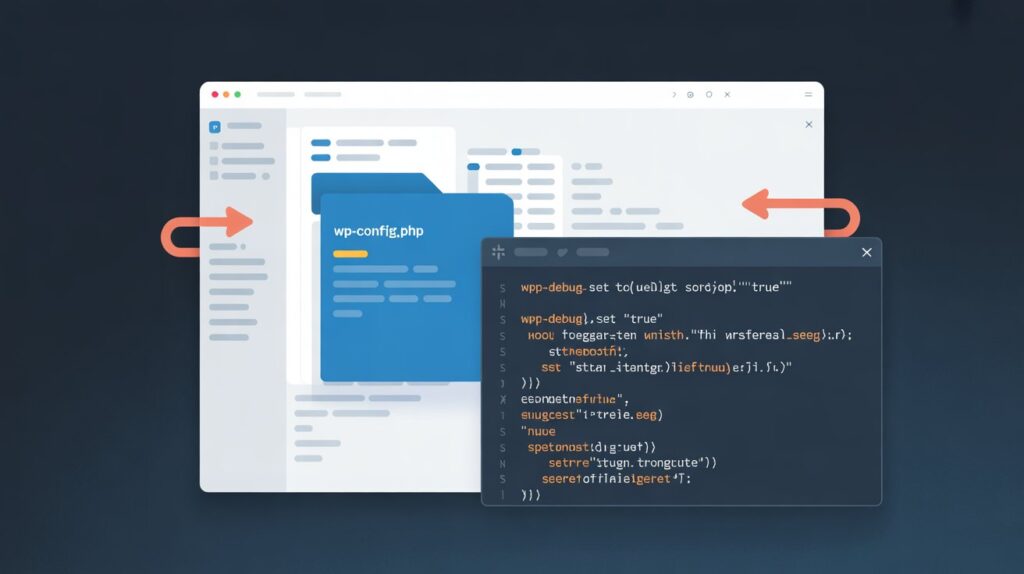
If recovery mode isn’t available or the email never arrived, enabling WP_DEBUG will reveal the exact error message causing the crash.
How to enable debug mode:
- Connect to your server via FTP (use FileZilla, it’s free) or your hosting control panel’s File Manager.
- Navigate to the root of your WordPress installation.
- Open
wp-config.phpin a text editor. - Find this line:
define( 'WP_DEBUG', false );- Replace it with:
   define( 'WP_DEBUG', true );
   define( 'WP_DEBUG_LOG', true );
define( 'WP_DEBUG_DISPLAY', false );- Save the file and reload your website.
Now check /wp-content/debug.log — this file will contain the exact PHP error, including the file name and line number causing the problem.
Important: Always turn debug mode off after you’re done. Leaving it on can expose sensitive information.
Step 3: Deactivate All Plugins
Plugin conflicts are responsible for the majority of WordPress critical errors. This is especially true after a WordPress core update, when older plugins haven’t been updated to match the new version.
If you can access your dashboard: Go to Plugins → Installed Plugins, select all, and choose Deactivate from the bulk actions menu.
If your dashboard is inaccessible:
- Connect via FTP or File Manager.
- Navigate to
/wp-content/plugins/. - Rename the
pluginsfolder toplugins_disabled. - Reload your website.
If the site loads, the problem is a plugin. Rename the folder back to plugins, then re-enter your dashboard and reactivate plugins one at a time until the error returns. The last plugin you activated is your culprit.
Once identified, check whether the plugin has an update, contact its developer, or find an alternative.
Step 4: Switch to a Default WordPress Theme
If disabling plugins didn’t help, your active theme might be the problem. This is especially common after theme updates or if you recently edited functions.php.
Via FTP/File Manager:
- Go to
/wp-content/themes/. - Rename your active theme folder (e.g.,
mytheme→mytheme_disabled). - WordPress will automatically fall back to a default theme like Twenty Twenty-Four.
If this resolves the error, your theme is the issue. You can:
- Check for a theme update.
- Restore the renamed folder and review your
functions.phpfor syntax errors. - Contact the theme developer’s support.
Step 5: Increase the PHP Memory Limit
One of the most common causes of a WordPress critical error fix scenario is running out of PHP memory. WordPress needs a certain amount of RAM to run, and when it hits the ceiling, it crashes with a fatal error.
Method 1 — Edit wp-config.php: Add this line above the /* That's all, stop editing! */ comment:
php
define( 'WP_MEMORY_LIMIT', '256M' );
```

**Method 2 — Edit .htaccess** (Apache servers):
```
php_value memory_limit 256M
```

**Method 3 — Edit php.ini** (if your host allows it):
```
memory_limit = 256M
Many shared hosting plans cap memory at 64M or 128M by default. If you’re on a resource-limited plan, this alone can explain recurring WordPress errors.
Step 6: Re-upload WordPress Core Files
If none of the above worked, your WordPress core files may be corrupted — this can happen during a failed update or a server interruption.
- Download the latest version of WordPress from wordpress.org.
- Unzip the package.
- Delete the
wp-contentfolder and thewp-config.phpfile from the downloaded package (you never want to overwrite those). - Upload the remaining files to your server via FTP, overwriting existing files.
This replaces core WordPress files without touching your content, plugins, or settings.
Step 7: Check PHP Version Compatibility
WordPress and its plugins require a minimum PHP version to function. If your hosting environment runs an outdated PHP version, certain modern plugins or themes will throw fatal errors.
To check your PHP version:
- Log into your cPanel or hosting dashboard.
- Look for “PHP Version” or “MultiPHP Manager”.
- WordPress officially recommends PHP 8.1 or higher as of current releases.
If you’re on PHP 7.2 or below, upgrading your PHP version often resolves mysterious critical errors instantly. Check with your host — most allow version changes with a single click.
Step 8: Restore From a Backup
If everything above fails and you have a recent site backup, restoring it is the fastest path back to normal. Most reputable hosts — including SiteGround, WP Engine, and Cloudways — offer one-click restore from daily automatic backups.
Plugins like UpdraftPlus or BlogVault also maintain off-site backups you can restore without needing to touch the server.
Lesson learned: Always have automatic backups enabled. This single habit prevents hours of recovery work.
How to Prevent WordPress Critical Errors in the Future
Fixing the error is only half the job. Here’s how to make sure it doesn’t happen again:
- Update plugins and themes regularly — but test updates on a staging site first.
- Use a staging environment before pushing changes live. Tools like WP Staging make this easy.
- Keep PHP updated — run at least PHP 8.1 for best compatibility and performance.
- Monitor uptime and errors with a tool like UptimeRobot or ManageWP.
- Enable automatic backups — daily, off-site, automated.
- Limit the number of plugins — every plugin adds risk. Only install what you truly need.
- Use a quality managed hosting provider that handles server-level errors and performance for you.
Quick Reference: WordPress Critical Error Fix Checklist
Here’s a printable summary you can bookmark:
- Check the admin email for the recovery mode link
- Enable WP_DEBUG to identify the exact error
- Deactivate all plugins (via FTP if needed)
- Switch to a default WordPress theme
- Increase the PHP memory limit to 256M.
- Re-upload fresh WordPress core files
- Update PHP version to 8.1+
- Restore from backup if all else fails
Conclusion
Seeing “There has been a critical error on this website” is stressful — but it’s rarely catastrophic. In most cases, the fix takes less than 15 minutes once you know where to look.
To recap: start with your admin email and the WordPress recovery mode link. If that doesn’t work, enable debug mode to identify the exact error, then systematically deactivate plugins and switch themes. If the issue is deeper, check your PHP memory limit and version, or re-upload fresh core files.
The biggest takeaway? Prevention beats recovery every time. Set up automatic backups, use a staging environment, keep everything updated, and monitor your site health regularly. These habits turn critical errors from emergencies into minor inconveniences.
If this guide helped you get back online, bookmark it for next time — and share it with a fellow WordPress user who might need it.
What does “There has been a critical error on this website” mean?
It means WordPress encountered a fatal PHP error that prevented the site from loading. WordPress sends a recovery link to your admin email so you can access the dashboard safely and fix the issue.
How do I fix this error without FTP access?
Use your hosting provider’s File Manager (cPanel or Plesk). You can also use the recovery mode link from your admin email to access the dashboard and disable problematic plugins or themes.
Why does this error keep coming back?
This usually means a compatibility issue. Most often, a plugin or theme is outdated and not compatible with your current WordPress or PHP version.
Can this error cause data loss?
No. This is a runtime/display issue. Your posts, pages, and data are safe. The site just can’t load until the error is fixed.
What’s the fastest way to fix it?
Check your admin email for the recovery link. If not available, rename the /wp-content/plugins/ folder via File Manager or FTP to disable all plugins instantly.
Is this the same as White Screen of Death?
Almost. The White Screen of Death showed a blank page. Now WordPress displays this message and sends a recovery email.
Should I contact my hosting provider?
If nothing works, yes. Hosting support can check server logs, PHP settings, and resource limits to find the issue quickly.