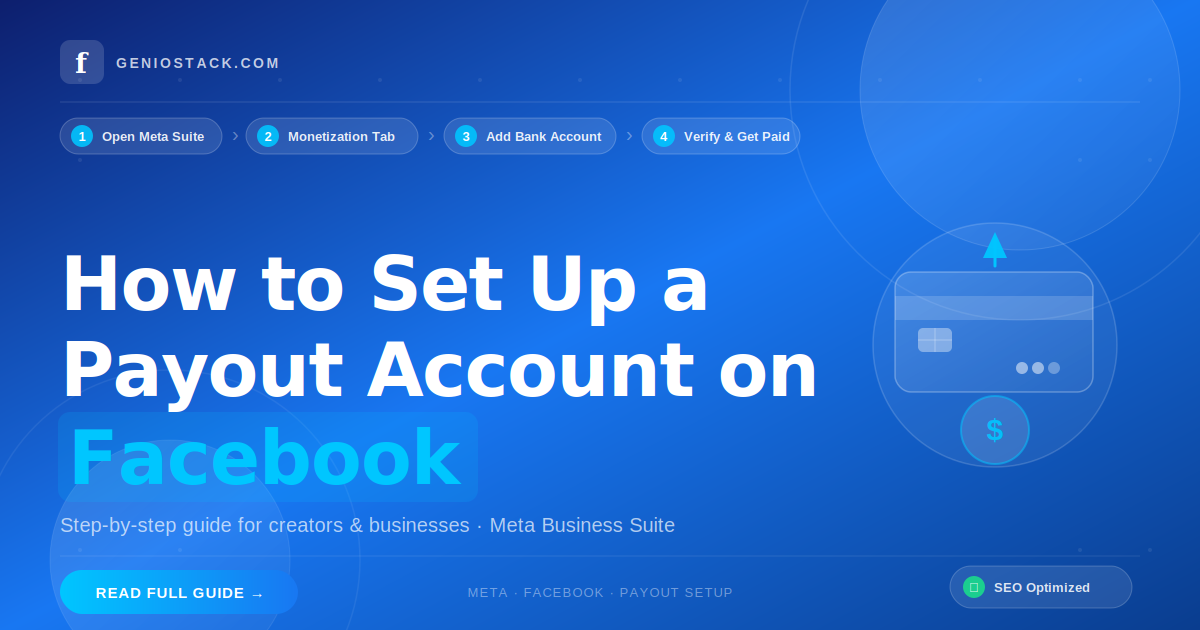
Setting up a payout account on Facebook takes just a few minutes inside Meta’s monetization settings. Navigate to your Facebook Page, open Creator Studio or Meta Business Suite, go to Monetization → Payout Settings, and add your bank account or payment method. Once verified, Facebook will deposit earnings directly to your account.
Introduction
If you’ve been creating content on Facebook — running ads, monetizing Reels, selling through a Shop, or earning through Stars — there’s one thing standing between you and your money: a properly configured payout account on Facebook.
Many creators and business owners get stuck at this step. Maybe you’re seeing error messages, can’t find the right settings panel, or aren’t sure which business type to select. You’re not alone. The Facebook payout setup process has a few hidden steps that aren’t immediately obvious, and one small mistake can delay your payments by weeks.
This guide walks you through the complete process — from finding the payout settings to verifying your identity, selecting your business type, and troubleshooting the most common issues. Whether you’re a solo creator, a small business, or managing a brand page, you’ll have everything you need to start receiving payments from Facebook by the end of this article.
Let’s get your money moving.
Table of Contents
What Is a Meta Payout Account?
A Meta payout account (formerly known simply as a Facebook payout account) is the payment profile linked to your Facebook Page or Meta Business Suite that tells Facebook where to send your earnings.
It stores your:
- Banking details (account and routing number, or equivalent in your country)
- Tax information (W-9 or W-8BEN form depending on your location)
- Legal business or personal identity for verification purposes
Without a verified payout account, Facebook holds your earnings indefinitely — even if you’re actively monetizing.
Key Insight: Meta processes payouts once per month, typically around the 21st, for the previous month’s earnings. Your account must be verified before that cycle to receive payment on time.
Who Needs to Set Up a Payout Account on Facebook?
You need a configured payout account if you are:
- Earning from In-Stream Ads on Facebook videos
- Receiving Facebook Stars from fans
- Monetizing Facebook Reels through the Reels Play bonus program
- Selling through Facebook Shops or Marketplace
- Running fan subscriptions
- Eligible for any Meta performance bonus
If any of these apply to you, this guide is exactly what you need.
Requirements Before You Begin
Before setting up your payout account, make sure you meet these baseline requirements:
- You have a Facebook Page (not just a personal profile)
- Your Page is enrolled in at least one Meta monetization program
- You’re in a country supported by Facebook monetization (check Meta’s monetization eligibility page)
- You have a valid government-issued ID for identity verification
- You have a bank account in your name or your business name
Important Note: Facebook requires your payout account details to match your legal identity exactly. Mismatches between your name on Facebook and your bank account name are one of the most common causes of payout delays.
How to Set Up a Payout Account on Facebook: Step-by-Step
Follow these steps carefully. The exact navigation can vary slightly depending on whether you’re using Creator Studio or Meta Business Suite, but the process is nearly identical.
Step 1: Go to Your Facebook Page
Log into Facebook and switch to your Page profile. You cannot access monetization settings from a personal profile.
Step 2: Open Creator Studio or Meta Business Suite
- Creator Studio: Go to business.facebook.com/creatorstudio or click the grid icon on Facebook and select Creator Studio.
- Meta Business Suite: Go to business.facebook.com and select your Page from the left panel.
Both platforms give you access to payout settings, though Meta is gradually consolidating everything into Meta Business Suite.
Step 3: Navigate to Monetization → Payout Settings
Inside Creator Studio or Meta Business Suite:
- Click Monetization in the left sidebar
- Select Payout Settings
- Click Set Up Payout Account (if this is your first time)
Step 4: Select Your Account Type (Set Up Payout Account Facebook Business Type)
Facebook will ask you to identify your business type. This is a critical step many people rush through.
Choose from:
- Individual / Sole Proprietor — if you’re a solo creator or freelancer
- Single-Member LLC — for single-owner LLCs in the US
- Company / Corporation — for registered businesses
- Non-Profit — for registered charitable organizations
Pro Tip: Selecting the wrong business type can trigger additional tax verification steps and delay your first payout. When in doubt, most individual creators should select Individual / Sole Proprietor.
Step 5: Enter Your Tax Information
Facebook (Meta) is legally required to collect tax details from all payout recipients.
- US-based creators: Complete the W-9 form (name, address, SSN or EIN)
- Non-US creators: Complete the W-8BEN form (name, country, foreign tax ID if applicable)
This step happens entirely within the Facebook interface — you don’t need to submit any paper forms.
Step 6: Verify Your Identity
Upload a government-issued photo ID (passport, driver’s license, or national ID card). Facebook uses this to verify your name matches your payout account.
Verification typically takes 1–3 business days.
Step 7: Add Your Bank Account Details
Once identity is verified:
- Click Add Bank Account
- Enter your account holder name (must match your ID exactly)
- Enter your routing number and account number (US) or IBAN/SWIFT (international)
- Confirm the details and submit
Facebook may send a small test deposit to verify your account — check your bank within 3–5 business days and confirm the amount in your settings if prompted.
Step 8: Confirm and Save
Review all your details, accept Meta’s payment terms, and click Save. Your payout account is now active.
How to Check Payout Account on Facebook
Once set up, you can check your payout account status anytime:
- Go to Creator Studio or Meta Business Suite
- Click Monetization → Payout Settings
- View your linked bank account, payment history, upcoming payout date, and current balance
You can also track individual earnings per monetization source (Stars, ads, subscriptions) from the Earnings tab.
Actionable Tip: Screenshot your payout summary each month before the payment cycle closes. This gives you a personal record in case of any discrepancies.
How to Change the Country in the Payout Facebook Page
Changing your country in Facebook’s payout settings is more involved than it sounds — Facebook links your payout country to your legal identity and tax documents.
Here’s how to update it:
- Go to Monetization → Payout Settings
- Click Edit next to your current country
- Select your new country from the dropdown
- Re-submit tax documents applicable to the new country
- Add a bank account in the new country (accounts from the old country cannot be transferred)
Important: If you’ve already received payouts under one country, Meta may require additional identity verification before allowing a country change. In some cases, you may need to contact Meta Support directly.
Common Payout Account Errors and How to Fix Them
| Error | Likely Cause | Fix |
|---|---|---|
| “Your payout account needs attention” | Incomplete tax form or expired ID | Re-submit tax info or update ID |
| Bank account not accepted | Name mismatch between ID and bank | Use exact legal name on both |
| Payout delayed past the 21st | Account verified after the cycle | Wait for next monthly cycle |
| Country not available | Unsupported region | Check Meta’s eligible country list |
| Tax form rejected | Incorrect EIN/SSN format | Re-enter carefully or contact support |
Facebook Class Action Settlement: What Creators Should Know
If you’ve heard about the Facebook class action settlement and are wondering whether it affects your payout account — here’s a quick summary.
Facebook (Meta) has faced several class action lawsuits over the years related to data privacy, advertising practices, and creator monetization disputes. Some settlements have resulted in direct payments to eligible users.
Does this affect your regular payout account? No. Settlement payouts are handled through a separate claims process — typically via a dedicated settlement website, not through your Facebook payout settings. If you believe you’re eligible for a settlement claim, you’ll receive notification via email or through official settlement websites.
Always verify settlement claims through official court or settlement administrator websites. Scammers frequently impersonate settlement processes to steal banking information.
For legitimate information, refer to resources like the Federal Trade Commission (FTC) or official court records.
Conclusion
Setting up a payout account on Facebook is the essential final step that connects your creative work to real income. The process is straightforward once you know exactly where to go — and now you do.
Here’s a quick recap of what matters most:
- Navigate to Monetization → Payout Settings inside Creator Studio or Meta Business Suite
- Select the correct business type to avoid tax form complications
- Submit accurate tax information — W-9 (US) or W-8BEN (international)
- Ensure your legal name matches across your ID and your bank account
- Check your payout status monthly to catch any issues before the payment cycle
Getting this right means your earnings flow automatically every month — no chasing payments, no delays, no frustration.
Ready to get started? Log into Meta Business Suite right now and complete your payout setup in under 10 minutes. Your next payment cycle is closer than you think.